Contributing
TaskNotes is an open-source Obsidian plugin. Contributions are welcome, whether you are fixing a bug, adding a feature, improving documentation, or reporting an issue.
Getting Started
- Fork callumalpass/tasknotes on GitHub
- Clone your fork
- Install dependencies with
bun install(ornpm install) - Set up a development vault (see below)
- Start the dev server and begin making changes
Development Setup
TaskNotes uses Bun as its package manager and test runner. Node.js with npm also works if you prefer.
bun install        # Install dependencies
bun run dev        # Watch mode -- rebuilds on every change
bun run build      # Production build (type-check + minify)
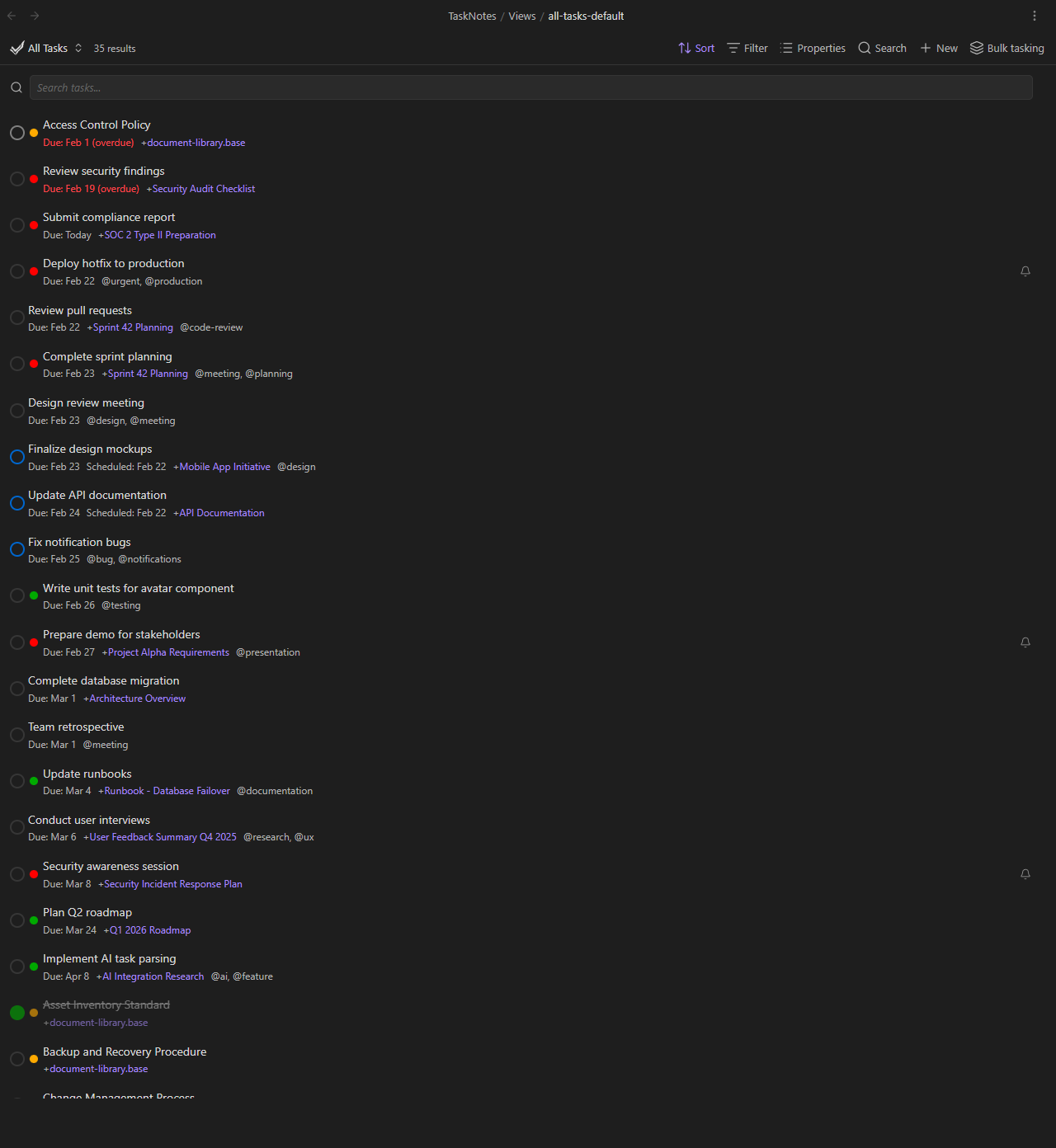
Dev Vault
The recommended setup is to clone the repo directly into a vault's plugin folder:
your-dev-vault/
  .obsidian/
    plugins/
      tasknotes/                <-- clone here
  TaskNotes/
    Tasks/                      <-- generated task files
    Views/                      <-- default .base views
    Demos/                      <-- demo .base files
  User-DB/
    People/                     <-- generated person notes
    Groups/                     <-- generated group notes
  Document Library, Knowledge/  <-- generated document notes
With this layout, bun run dev rebuilds main.js and styles.css in place. Install the Hot Reload community plugin in your dev vault for automatic reloading whenever the build output changes.
Test Data
A test data generator populates the dev vault with realistic content: person notes, group notes, document notes, task notes, and demo .base views. Run it after cloning to get a working dev vault, or any time you need to reset to a clean state (for example, after testing bulk convert and the documents have extra frontmatter fields).
Option A: Test Fixtures Plugin (recommended)
Install the TaskNotes Test Fixtures plugin via BRAT (cybersader/tasknotes-test-fixtures). It provides the same test data through Obsidian commands -- no terminal needed, works on mobile too.
| Command | Description |
|---|---|
| Generate all test data | Creates all files (overwrites existing) |
| Clean and regenerate all test data | Full reset -- deletes then recreates |
| Remove all generated test data | Deletes without regenerating |
Tip: You can also clone the test fixtures repo into
.obsidian/plugins/and modify it directly. This keeps all contributors on the same set of fixtures and lets you create custom commands for specific testing scenarios (e.g. overdue-only tasks, multi-user shared vault setups). Editsrc/main.ts, runnpm run build, and reload Obsidian.
Option B: Node script
# Generate all test data (overwrites generated files, ignores your own files)
node scripts/generate-test-data.mjs          # or: bun run generate-test-data

# Full reset -- delete all generated data, then regenerate from scratch
node scripts/generate-test-data.mjs --clean  # or: bun run generate-test-data:clean
What --clean removes:
User-DB/People/andUser-DB/Groups/-- all filesTaskNotes/Tasks/-- all filesDocument Library, Knowledge/subdirectories (Projects, Compliance, Technical, HR, Meeting Notes, Research, Templates, Design, Operations, Security) -- all files in these folders
What --clean does NOT touch:
- Your own files at the root of
Document Library, Knowledge/(e.g. personal notes, policies you created) - The
TaskNotes/Demos/andTaskNotes/Views/folders (.basefiles are managed separately viatest-fixtures/)
Resetting demo .base views (if you modified a demo and want to restore it):
The canonical versions live in test-fixtures/TaskNotes/Demos/. Copy them back to the vault:
cp test-fixtures/TaskNotes/Demos/*.base ../../../TaskNotes/Demos/
After running the generator or restoring fixtures, reload Obsidian (Ctrl+P > "Reload app without saving") to pick up the changes.
What You Need
- Obsidian 1.10.1 or later with the Bases core plugin enabled
- Bun (or Node.js 18+)
- A text editor or IDE with TypeScript support
Project Structure
tasknotes/
  src/                  TypeScript source code
    bases/              Bases view system (rendering, toolbar, property mapping)
    bulk/               Bulk tasking engines (generate, convert, edit)
    identity/           Device identity and person/group note discovery
    modals/             Modal dialogs (task creation, edit, bulk, reminders)
    notifications/      Background monitoring, toast, bell badge
    services/           Core business logic (task CRUD, field mapping)
    settings/           Settings UI and defaults
    ui/                 Reusable UI components (PropertyPicker, pickers)
    utils/              Shared utilities
  styles/               CSS source files (concatenated at build time)
  docs/                 Documentation (this site)
  tests/                Jest unit and integration tests
  e2e/                  Playwright end-to-end tests
  main.js               Build output (do not edit directly)
  styles.css            CSS build output (do not edit directly)
  manifest.json         Obsidian plugin manifest
  package.json          Dependencies and scripts
Key files to know:
| File | Purpose |
|---|---|
src/main.ts |
Plugin entry point, command registration, lifecycle |
src/services/TaskService.ts |
Task creation, update, deletion |
src/services/FieldMapper.ts |
Translates between internal and user-configured property names |
src/bases/BasesViewBase.ts |
Base class for all TaskNotes Bases view types |
esbuild.config.mjs |
Build configuration |
build-css.mjs |
CSS concatenation script |
Building and Testing
Build Commands
bun run dev          # Watch mode (CSS + esbuild, rebuilds on change)
bun run build        # Production build (CSS + type-check + esbuild)
bun run build-css    # Rebuild CSS only
Running Tests
bun test             # Run all Jest tests
bun run test:watch   # Watch mode
bun run test:unit    # Unit tests only
bun run test:integration   # Integration tests only
End-to-End Tests
TaskNotes has a Playwright test suite that connects to a running Obsidian instance via Chrome DevTools Protocol. E2E tests use a separate vault (tasknotes-e2e-vault/) to avoid interfering with your dev vault.
bun run e2e:setup    # First-time setup (Linux/WSL)
bun run build:test   # Build and copy to e2e vault
bun run e2e          # Run the full test suite
On Windows and macOS, setup auto-detects the Obsidian installation. On Linux/WSL, the setup script extracts the Obsidian AppImage.
Architecture Overview
TaskNotes is built around a few key systems:
Bases Integration. TaskNotes extends Obsidian's Bases with custom view types (Task List, Kanban, Calendar, Upcoming, Agenda). Each view type extends BasesViewBase, which handles data loading, filtering, and rendering. The BasesToolbarInjector adds TaskNotes buttons to native Bases views.
Task Service. TaskService handles creating, reading, updating, and deleting task files. FieldMapper translates between internal field names (like due) and user-configured property names (like deadline). Per-task overrides are resolved via fieldOverrideUtils.
Notification System. BasesQueryWatcher monitors .base files with notify: true, evaluates their queries in the background, and triggers the toast notification and bell badge when items match. VaultWideNotificationService aggregates notifications from views and upstream reminders.
Bulk Tasking. BulkOperationEngine routes to specialized engines: BulkTaskEngine (generate), BulkConvertEngine (convert in-place), BulkEditEngine (modify properties), and BulkUpdateEngine (reschedule, archive, complete, delete).
Identity System. DeviceIdentityManager assigns each device a UUID. UserRegistry maps devices to person notes. PersonNoteService discovers person notes and GroupRegistry discovers groups with recursive member resolution.
Pull Request Process
- Branch from
main. Create a feature branch with a descriptive name. - Make focused changes. Keep PRs small and focused on one thing. A bug fix and a new feature should be separate PRs.
- Write tests where possible. Unit tests for logic, E2E tests for UI behavior.
- Follow existing patterns. Look at similar code in the codebase before introducing new patterns.
- Describe your changes. The PR body should explain what changed and why. Include screenshots for UI changes.
- Update documentation. If your change adds or modifies user-facing behavior, update the relevant docs page.
Coding Standards
- TypeScript. All source code is TypeScript. Avoid
anytypes where a more specific type is reasonable. - Use existing utilities. Check
src/utils/andsrc/services/before creating new helpers. Many common operations already have functions. - Follow Obsidian guidelines. The Obsidian Plugin Guidelines apply. Key points: sentence case for UI text, no manual HTML headings in settings tabs, use
SettingAPI for settings UI. - ESLint. The project uses eslint-plugin-obsidianmd for Obsidian-specific linting rules. Run
bun run lintbefore submitting. - CSS. Styles live in
styles/as individual files. Usetn-prefixed class names to avoid conflicts with Obsidian's styles. The build concatenates all CSS files intostyles.css.
Documentation
Documentation lives in docs/ and is built with a custom static site builder in docs-builder/. The builder reads markdown from docs/, processes it with marked, and outputs HTML to docs-builder/dist/. Navigation is read from mkdocs.yml (the nav: section only -- MkDocs itself is not used for the production site).
Previewing the docs locally
First-time setup:
cd docs-builder
npm install          # or: bun install
Build and serve:
cd docs-builder
npm run dev          # or: bun run dev -- builds to dist/ and serves at http://127.0.0.1:4321
Or run the steps separately:
cd docs-builder
node build.js                                    # build only
python3 -m http.server 4321 --directory dist     # serve
Open http://127.0.0.1:4321 in your browser to preview. The builder does not live-reload -- re-run node build.js after edits and refresh the browser.
Writing docs
Images and GIFs go in docs/assets/. Use descriptive filenames like feature-toast-notification.png or bulk-tasking-generate-mode.gif.
Image paths depend on the page's location:
| Page location | Image path |
|---|---|
docs/features/*.md |
../assets/filename.png |
docs/views/*.md |
../assets/filename.png |
docs/settings/*.md |
../assets/filename.png |
docs/*.md (top-level) |
assets/filename.png |
Capturing screenshots in Obsidian: Use the Custom Attachment Location community plugin to route pasted images directly to docs/assets/. Set the attachment folder to the docs assets path so screenshots land in the right place without manual copying.
Using test fixtures for docs: The TaskNotes Test Fixtures plugin is essential for docs work. Use it to:
- Generate demo data before capturing screenshots or GIFs — gives you realistic tasks, persons, groups, documents, and demo
.baseviews - Reset between takes — run "Clean and regenerate" to get a fresh state after modifying tasks during recording
- Test features rapidly — the generated data covers most features (recurring tasks, dependencies, reminders, bulk operations, shared vault scenarios)
- Reproduce examples — each docs page has a recording script (in an HTML comment at the top) that references specific demo
.basefiles from the fixtures
Install via BRAT (cybersader/tasknotes-test-fixtures) or clone into .obsidian/plugins/. See Test Data above for full details.
Placeholders: When adding a feature before screenshots are ready, use HTML comment placeholders:
<!-- SCREENSHOT: Description of what the screenshot should show -->
<!-- GIF: Description of the interaction to capture -->
<!-- VIDEO: Description of the workflow to record -->
Replace placeholders with actual images as they become available.
Writing style: Natural descriptions, concrete examples, no jargon. Use double dashes (--) instead of em dashes. Link to Obsidian help docs where relevant. Follow the breadcrumb pattern at the top of each page ([← Back to Features](../features.md)).
Navigation: Update mkdocs.yml when adding new pages. Place feature pages under the Features nav section, view pages under Views.
Reporting Issues and Feature Requests
If you find a bug or have a feature request, open an issue on GitHub. Include:
- Steps to reproduce the issue
- What you expected to happen
- What actually happened
- Your Obsidian version and TaskNotes version
- Debug log output if applicable (see Collecting Debug Logs)
For troubleshooting common problems before filing an issue, see Troubleshooting.