Writing Documentation
This page covers the documentation build system, writing conventions, and the full styling reference. For contributor onboarding, see Contributing.
Docs Builder
Documentation lives in docs/ and is built with a custom static site builder in docs-builder/. The builder reads markdown from docs/, processes it with marked, and outputs HTML to docs-builder/dist/. Navigation is read from mkdocs.yml (the nav: section only -- MkDocs itself is not used for the production site).
First-Time Setup
cd docs-builder
npm install          # or: bun install
Build and Serve
cd docs-builder
npm run dev          # builds to dist/ and serves at http://127.0.0.1:4321
Or run the steps separately:
cd docs-builder
node build.js                                    # build only
python3 -m http.server 4321 --directory dist     # serve
The builder does not live-reload -- re-run node build.js after edits and refresh the browser.
Writing Conventions
- Style: Natural descriptions, concrete examples, no jargon. Use double dashes (
--) instead of em dashes. - Links: Link to Obsidian help docs where relevant.
- Breadcrumbs: Follow the breadcrumb pattern at the top of each page (
[<- Back to Features](../features.md)). - Navigation: Update
mkdocs.ymlwhen adding new pages. Place feature pages under the Features nav section, view pages under Views.
Images and Media
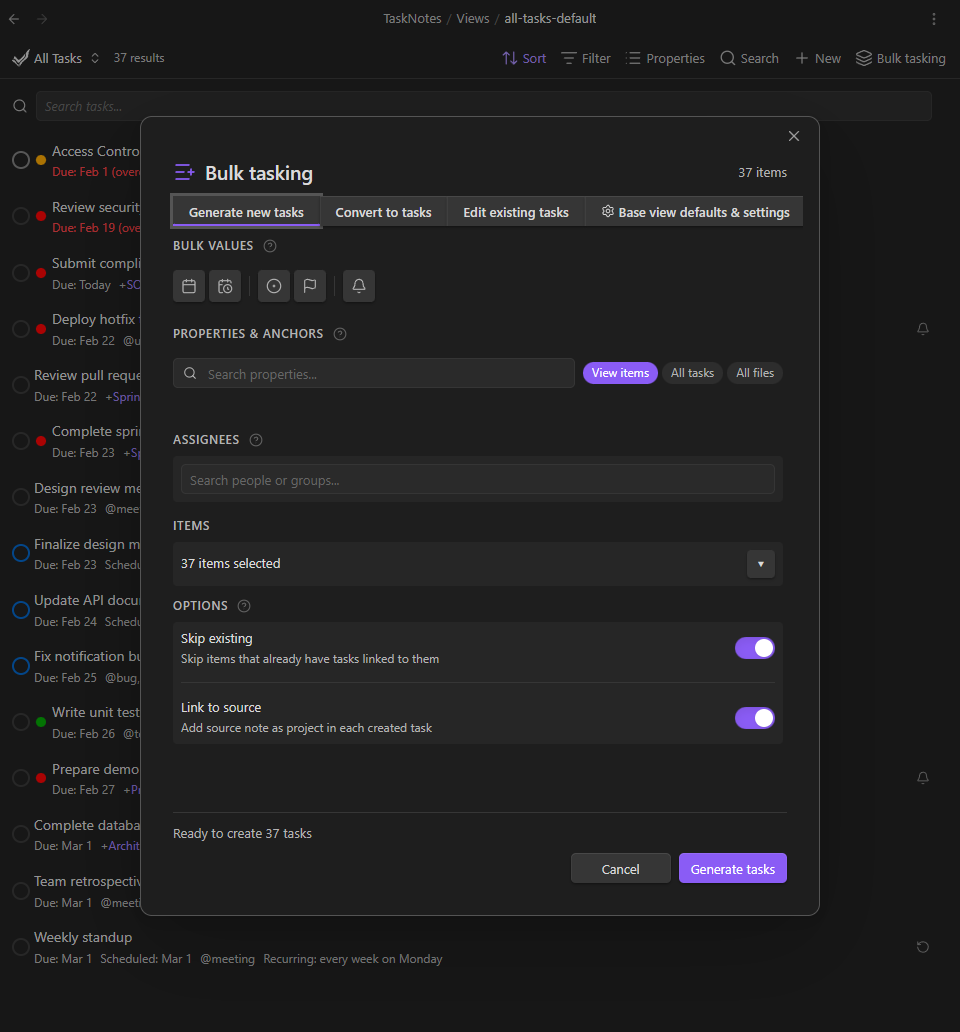
Images and GIFs go in docs/assets/. Use descriptive filenames like feature-toast-notification.png or bulk-tasking-generate-mode.gif.
Image paths depend on the page's location:
| Page location | Image path |
|---|---|
docs/features/*.md |
../assets/filename.png |
docs/views/*.md |
../assets/filename.png |
docs/settings/*.md |
../assets/filename.png |
docs/*.md (top-level) |
assets/filename.png |
Standard markdown image syntax:
Videos
Use HTML <video> tags for .mp4 files. Obsidian ![[wikilink]] embeds are not supported by the docs builder.
<video controls width="100%">
  <source src="../assets/bulk-convert-demo.mp4" type="video/mp4">
</video>
Attachment Plugin
The dev vault uses Custom Attachment Location to route pasted images to docs/assets/. Set the path to .obsidian/plugins/tasknotes/docs/assets (absolute from vault root, no ./ prefix) to avoid path resolution issues.
Note: The collect attachments command in that plugin does not move .mp4 files -- videos must be placed manually.
Placeholders
When adding a feature before screenshots are ready, use HTML comment placeholders:
<!-- SCREENSHOT: Description of what the screenshot should show -->
<!-- GIF: Description of the interaction to capture -->
<!-- VIDEO: Description of the workflow to record -->
Replace placeholders with actual images as they become available.
Styling Reference
Everything below documents the styling features available in the docs builder. All examples use standard markdown or HTML that the builder processes.
Theme
The docs site uses a scholarly/technical aesthetic:
| Role | Font | Notes |
|---|---|---|
| Display (headings) | Cormorant Garamond | Refined optical serif |
| Body text | IBM Plex Serif | Technical warmth |
| UI, nav, code | IBM Plex Mono | File-listing feel |
One accent colour: amber. Light and dark themes are supported -- toggle via the switch in the sidebar footer.
Callouts
Obsidian-style callout syntax is fully supported. The builder converts > [!type] blocks into styled, coloured cards. See the Obsidian Callouts documentation for the original syntax reference and full list of supported types.
Basic callout
> [!info] This is an info callout
> Body text goes here. Supports **bold**, `code`, [links](https://example.com), and other inline formatting.
Body text goes here. Supports bold, code, links, and other inline formatting.
Callout without custom title
Omit the title to use the type name as the heading:
> [!warning]
> Something to watch out for.
Something to watch out for.
Foldable callouts
Add + (open by default) or - (closed by default) after the type:
> [!tip]+ Click to collapse this
> This content is visible by default but can be collapsed.

> [!example]- Click to expand this
> This content is hidden by default.
💡 Click to collapse this
This content is visible by default but can be collapsed.
📜 Click to expand this
This content is hidden by default.
Callout types and colours
| Type | Aliases | Colour | Icon |
|---|---|---|---|
note |
-- | Blue | Pencil |
info |
-- | Blue | Info circle |
todo |
-- | Blue | Checkbox |
tip |
hint, important |
Green | Lightbulb |
success |
check, done |
Green | Checkmark |
abstract |
summary, tldr |
Cyan | Clipboard |
question |
help, faq |
Yellow | Question mark |
warning |
caution, attention |
Orange | Warning triangle |
danger |
error |
Red | Zap |
failure |
fail, missing |
Red | X mark |
bug |
-- | Red | Bug |
example |
-- | Purple | List |
quote |
cite |
Gray | Quote mark |
Multi-paragraph callouts
Continue lines with > to include multiple paragraphs, lists, or code:
> [!note] Multi-paragraph example
> First paragraph of the callout.
>
> Second paragraph. You can include:
>
> - Bullet lists
> - With multiple items
>
> And `inline code` or **bold text**.
First paragraph of the callout.
Second paragraph. You can include:
- Bullet lists
- With multiple items
And inline code or bold text.
Badges
Inline labels for headings. Useful for marking features as experimental, new, or deprecated.
## Feature Name <span class="badge badge--experimental">Experimental</span>
Renders as a small amber pill next to the heading text. Available badge classes:
| Class | Appearance |
|---|---|
badge badge--experimental |
Amber border and text, uppercase "EXPERIMENTAL" |
To add more badge variants, define new badge--* classes in docs-builder/src/styles/main.css.
Collapsible Details
For expandable sections that are not callouts, use standard HTML <details> and <summary>:
<details>
<summary>Click to expand</summary>

Content inside the collapsible. Supports full markdown once there is a blank line after the `<summary>` tag.

</details>
Click to expand
Content inside the collapsible. Supports full markdown once there is a blank line after the <summary> tag.
These render as amber-bordered cards with a rotation triangle indicator. For coloured, typed collapsibles, use foldable callouts instead (> [!type]+ or > [!type]-).
Tables
Standard markdown tables are supported and automatically wrapped in a scrollable container for wide content:
| Column A | Column B | Column C |
|----------|----------|----------|
| Value 1  | Value 2  | Value 3  |
Long tables scroll horizontally rather than overflowing into the table of contents.
Code Blocks
Fenced code blocks get syntax highlighting via highlight.js. Specify the language after the opening fence:
```typescript
function greet(name: string): string {
  return `Hello, ${name}`;
}
```
A copy button appears on hover in the top-right corner of every code block.
Supported languages: All languages bundled with highlight.js -- typescript, javascript, bash, yaml, json, css, html, python, markdown, and many more.
Inline code uses backticks as usual: `like this`.
Mermaid Diagrams
Mermaid diagrams are rendered client-side. Use a fenced code block with the mermaid language:
```mermaid
flowchart LR
    A[Note] -->|becomes| B[Task]
```
flowchart LR
    A["📄 Note"] -->|becomes| B["✅ Task"]
    style B fill:#3a9a5c22,stroke:#3a9a5c
Supports all Mermaid diagram types: flowcharts, sequence diagrams, class diagrams, state diagrams, Gantt charts, and more. See the Mermaid documentation for the full syntax reference.
Use <br/> for line breaks inside Mermaid node labels — not \n. Backslash-n renders as literal \n text instead of a line break.
%% WRONG — shows literal \n
A["Line one\nLine two"]

%% CORRECT — renders as two lines
B["Line one
Line two"]
Theme is auto-detected from the site's light/dark mode toggle.
Blockquotes
Standard markdown blockquotes (without a [!type] callout marker) render with an amber left border:
> This is a plain blockquote.
> It uses italic styling and a left border.
This is a plain blockquote. It uses italic styling and a left border.
Headings and Table of Contents
Headings ## through #### (h2--h4) automatically get anchor IDs and appear in the right-side "On this page" table of contents. # (h1) is stripped and replaced by the page title from frontmatter.
## Section Heading
### Subsection
#### Sub-subsection
Link to headings with standard anchor syntax:
[See the callouts section](#callouts)
Links
Internal links use relative markdown paths. The builder resolves them to the correct URL:
[Task Management](task-management.md)
[Agenda View](../views/agenda-view.md)
[Projects section](task-management.md#projects)
External links use full URLs:
[Obsidian Help](https://help.obsidian.md/)
Obsidian wikilinks ([[...]]) are not supported. Use standard markdown link syntax.
What Is NOT Supported
The docs builder uses vanilla marked.js with the extensions documented above. The following syntaxes from other systems do not work:
| Syntax | Source | Use instead |
|---|---|---|
![[filename]] |
Obsidian embeds |  for images, <video> for videos |
[[wikilink]] |
Obsidian links | [text](path.md) standard markdown links |
??? type "title" |
PyMdownx admonitions | > [!type] title Obsidian callouts |
::: directive |
rST / MyST | Not supported |
{.class} attribute syntax |
Pandoc / attr_list | Use inline <span class="..."> HTML |
Footnotes ([^1]) |
Various | Not currently supported |
Definition lists (term\n: definition) |
Various | Not currently supported |