Custom Properties
They serve different purposes and work at different scopes:
| System | What it does | Scope | Where to configure |
|---|---|---|---|
| Built-in Task Properties | Core fields every task has: status, priority, due date, scheduled date, tags, contexts, assignee, etc. | Global | Settings > Task Properties |
| Custom Properties (this page) | Register your own fields for modal UI, autocomplete, defaults, NLP, and Bases integration | Global | Settings > Task Properties > Custom Properties |
| Property Mapping | Remap property names to core fields, per-task or per-view | Per-task / Per-view | Task modal PropertyPicker or .base file |
Built-in properties ship with TaskNotes and cover most task workflows. Custom Properties extend the data model with your own fields. Property Mapping changes which frontmatter key TaskNotes reads for core logic like due date or assignee.
TaskNotes allows you to define your own custom properties for tasks. A custom property starts as a frontmatter field definition (a name, a type, and optionally a default value), but once registered it feeds into nearly every part of the plugin:
| Where it shows up | What happens |
|---|---|
| Task creation & edit modals | The field appears as an editable row with a type-appropriate editor (text input, date picker, checkbox, number stepper, or list chips) |
| Autocomplete | Text and list fields support [[ wikilink suggestions, filterable by tag, folder, or frontmatter property -- so an "Assignee" field can limit suggestions to notes tagged #person |
| Task creation defaults | Default values pre-fill automatically when creating tasks via the modal, instant conversion, the "Create or open task" command, or the HTTP API |
| NLP recognition | Each field can have a trigger character (e.g., ^ for effort). Typing ^high in a natural language task description sets the field automatically |
| Bases views | Custom properties are available in filter expressions (note.effort == "high"), sort menus, and group-by options -- they work the same as built-in fields |
| Modal Fields configuration | Custom properties sync into Settings > Modal Fields, where you can reorder them, toggle visibility, or mark them as required |
| Bulk operations | The PropertyPicker in the bulk tasking modal includes custom properties, so you can set values across many tasks at once |
In short, registering a custom property is not just adding a frontmatter key -- it wires that key into the full task lifecycle. Add a field like client, effort, billing_code, or review_stage and it works everywhere built-in fields like status or priority do.
Creating Custom Properties
Custom properties are created in the TaskNotes settings, under the "Task Properties" tab. To create a new custom property, click the "Add custom property" button.
Each custom property has the following settings:
- Display Name: The name of the field as it will be displayed in the UI.
- Property Name: The name of the field as it will be stored in the frontmatter of the task note.
- Type: The data type of the field. The following types are supported:
- Text: A single line of text.
- Number: A numeric value (supports ranges in filters and sorting).
- Boolean: A true/false value stored as a checkbox in the task modal.
- Date: A date.
- List: A list of values.
- Default Value (optional): A default value to pre-fill when creating new tasks. The input format depends on the field type:
- Text: Enter the default text value.
- Number: Enter the default number.
- Boolean: Toggle to set the default state (checked/unchecked).
- Date: Select from presets: None, Today, Tomorrow, or Next Week.
- List: Enter comma-separated default values.
File Suggestion Filtering (Advanced)
When using text or list type custom properties, you can configure autosuggestion filters to control which files appear in the autocomplete dropdown when you type [[ in the field.
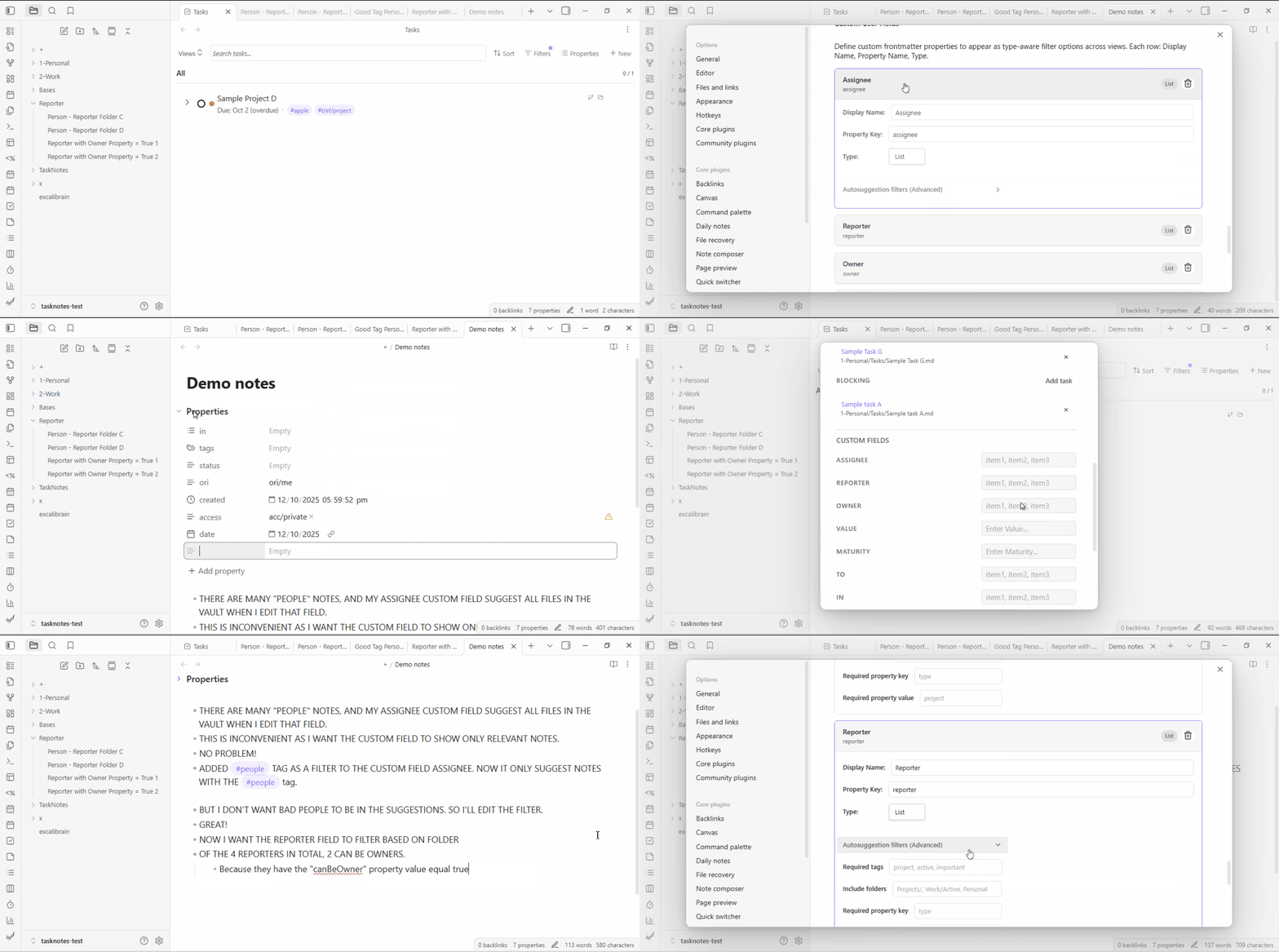
This is useful when you want to limit suggestions to specific types of notes. For example:
- An "Assignee" field that only suggests notes tagged with
#person - A "Project" field that only shows notes in the
Projects/folder - A "Related Document" field filtered by a specific frontmatter property
Filtering is especially useful in large vaults where unfiltered autocomplete returns too many results.
Configuring Filters
To configure filters for a custom property:
- Go to Settings > Task Properties > Custom Properties
- Expand the custom property card you want to configure
- Expand the "Autosuggestion filters (Advanced)" section
- Configure one or more of the following filters:
Filter Options
Required tags: Only show files that have ANY of these tags (comma-separated)
- Example:
person, team- shows files with either#personOR#teamtag - Supports hierarchical tags:
project/activematches#project/active
- Example:
Include folders: Only show files in these folders (comma-separated)
- Example:
People/, Teams/- shows files in either folder - Supports nested folders:
Projects/Active/matches files in that specific folder
- Example:
Required property key: Only show files that have this frontmatter property
- Example:
role- shows files with arole:property in frontmatter
- Example:
Required property value: Expected value for the property (optional)
- Example:
developer- when combined with property keyrole, shows files withrole: developer - Leave empty to match any value (just checks property exists)
- Example:
Filter Indicator
When filters are configured, a "Filters On" badge with a funnel icon appears next to the section title. This prevents you from forgetting that filters are active.
Filter Behavior
- All filters are combined with AND logic: Files must match ALL configured filters to appear
- Empty filters are ignored: If you don't configure a filter, it won't restrict results
- No filters = all files: If no filters are configured, all markdown files in your vault will appear
- Filters only affect autocomplete: They don't affect the actual field value or validation. You can still type any value manually -- filters only narrow the suggestion list.
Example Configurations
Assignee Field (People Only)
Display Name: Assignee
Property Key: assignee
Type: List

Autosuggestion filters:
  Required tags: person
  Include folders: People/
Project Field (Active Projects)
Display Name: Project
Property Key: project
Type: Text

Autosuggestion filters:
  Required tags: project
  Required property key: status
  Required property value: active
Related Note (Specific Folder)
Display Name: Related Note
Property Key: related-note
Type: Text

Autosuggestion filters:
  Include folders: Documentation/, Guides/
Using Custom Properties
Once you have created a custom property, it will be available in the following places:
- Task Modals: The custom property will be displayed in the task creation and edit modals.
- Bases Filters: Add the field to Bases filter expressions (for example
note.effort == "high") to narrow task lists and Kanban boards. - Sorting: Use the Bases sort menu to order tasks by the custom property.
- Grouping: Use the Bases group menu to create swimlanes or list groupings based on the custom property.
- NLP Recognition: Custom properties are recognized by the natural language task creation system.
- Task Creation Defaults: Default values are pre-filled when creating new tasks via any method.
Frontmatter
Custom property data is stored in the frontmatter of the task note. The property name you define is used as the key in the frontmatter.
For example, if you create a custom property with the property name "my_field", the data for that field will be stored in the frontmatter as follows:
---
my_field: value
---
Related
- Property Mapping for remapping property names to core TaskNotes fields
- Task Management for built-in task properties
- Bulk Tasking for using custom properties in bulk operations
- Views for filtering and sorting by custom properties