Inline Task Integration
TaskNotes integrates with the Obsidian editor to allow task management directly within notes. This is achieved through interactive widgets, a conversion feature for checkboxes, and natural language processing. Inline features support capture and task updates without leaving the current note.
Task Link Overlays
When a wikilink to a task note is created, TaskNotes can replace it with an interactive Task Link Overlay. Enable or disable overlays from Settings -> TaskNotes -> Features (Task link overlay). The widget displays information about the task, such as status, priority, and due date, and allows actions like status/priority changes or opening the edit modal.
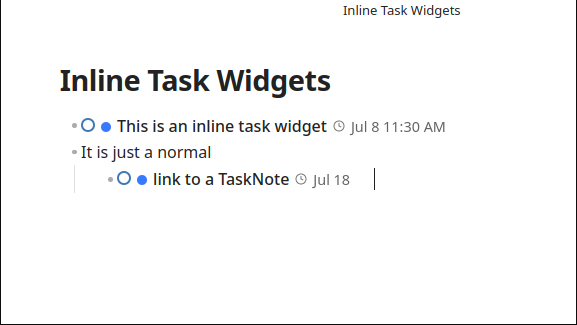
Task link overlays in Live Preview mode show interactive widgets with status, dates, and quick actions
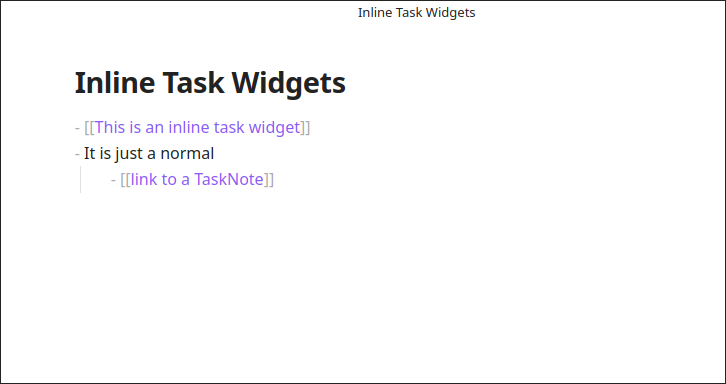
In Source mode, task links appear as standard wikilinks until rendered
Widget Features
Each overlay shows the task's status dot (click to cycle), priority dot, title (click to edit), dates (calendar/clock icons), and a recurrence indicator if applicable. An action menu (ellipsis, shown on hover) provides additional options. This lets you update status and metadata in-place without opening the task file.
Mode-Specific Behavior
Task link overlays work in both Live Preview and Reading modes:
- Live Preview Mode: Widgets hide when the cursor is within the wikilink range, allowing for easy editing.
- Reading Mode: Widgets display with full functionality and integrate with the reading mode typography.
The overlays support drag-and-drop to calendar views and provide keyboard shortcuts for quick navigation (Ctrl/Cmd+Click to open the source file).
Create Inline Task Command
The Create inline task command allows you to create a new task from the current line in the editor. This command is available in the command palette.
When you run the command, the current line is used as the title of the new task. The line is then replaced with a link to the new task file.
Instant Task Conversion
The Instant Task Conversion feature transforms lines in your notes into TaskNotes files. This works with both checkbox tasks and regular lines of text. Turn the feature on or off from Settings -> TaskNotes -> Features (Show convert button next to checkboxes). When enabled, a "convert" button appears next to content in edit mode. Clicking this button creates a new task note using the line text as the title and replaces the original line with a link to the new task file.
This supports progressive conversion from draft notes to dedicated task files.
Folder Configuration
By default, converted tasks are placed in the same folder as the current note ({{currentNotePath}}). You can change this behavior in Settings -> TaskNotes -> General (Folder for converted tasks):
- Leave empty: Uses your default tasks folder (configured in the same section)
{{currentNotePath}}: Places tasks in the same folder as the note you're editing (default){{currentNoteTitle}}: Creates a subfolder named after the current note- Custom path: Specify any folder path (e.g.,
TaskNotes/Converted)
Supported Line Types
The conversion feature works with:
- Checkbox tasks:
- [ ] Task descriptionbecomes a TaskNote with task metadata - Bullet points:
- Some task ideabecomes a TaskNote with the text as title - Numbered lists:
1. Important itembecomes a TaskNote - Blockquoted content:
> Task in calloutbecomes a TaskNote (preserves blockquote formatting) - Plain text lines:
Important thing to dobecomes a TaskNote - Mixed formats:
> - [ ] Task in blockquotehandles both blockquote and checkbox formatting
Content Processing
When converting lines:
- Special characters like
>,#,-are automatically removed from the task title - Original formatting is preserved in the note (e.g.,
> [[Task Title]]for blockquoted content) - Task metadata is extracted from checkbox tasks (due dates, priorities, etc.)
- Natural language processing can extract dates and metadata from plain text (if enabled) Conversion preserves surrounding formatting, including callouts, outlines, and nested lists.
The feature handles edge cases like nested blockquotes and maintains proper indentation in the final link replacement.
Bulk Task Conversion
The Bulk Task Conversion command converts all checkbox tasks in the current note to TaskNotes in a single operation. This command is available in the command palette as "Convert all tasks in note to TaskNotes".
Usage
- Open a note containing checkbox tasks
- Open the command palette (
Ctrl+P/Cmd+P) - Run Convert all tasks in note to TaskNotes
The command scans for all checkbox tasks (- [ ], * [ ], 1. [ ], etc.), including tasks inside blockquotes, creates individual task files, and replaces each checkbox with a wikilink. It displays progress and shows a summary when complete (for example, "Successfully converted 5 tasks to TaskNotes.").
ℹ How it works under the hood
The command:
- Scans the entire note for checkbox tasks
- Includes tasks inside blockquotes (e.g.,
> - [ ] task in callout) - Applies the same conversion logic as instant task conversion
- Creates individual TaskNote files for each task
- Replaces the original checkboxes with links to the new task files
- Preserves original indentation and formatting (including blockquote markers)
This command modifies note content permanently. Before using:
- Create a backup of your note if it contains important data
- Review the tasks to ensure they should become individual TaskNotes
- Expect processing time — notes with many tasks may take several seconds
- Avoid interruption — do not edit the note while conversion is running
✎ Performance
Processing time depends on the number of tasks:
- Small notes (1–10 tasks): Near-instant
- Medium notes (10–50 tasks): 2–5 seconds
- Large notes (50+ tasks): 10+ seconds
The operation creates multiple files and updates note content, which requires disk I/O and editor updates.
Error Handling
If some tasks fail to convert, the command will:
- Complete successfully converted tasks
- Display a summary showing both successes and failures
- Log detailed error information to the console for troubleshooting
Failed conversions typically occur due to:
- Tasks with titles containing invalid filename characters
- Insufficient disk permissions
- Very long task titles (over 200 characters) For large notes, converting a small section first helps validate folder and filename settings.
Relationships Widget
New in v4: The Relationships Widget consolidates what were previously three separate widgets (project subtasks, task dependencies, and blocking tasks) into a single dynamic interface.
The widget appears in task notes and automatically displays up to four tabs based on available relationship data:
- Subtasks Tab (Kanban): Shows tasks that reference the current note as a project. Uses Kanban layout for visual task management.
- Projects Tab (List): Shows projects that the current task belongs to. Uses list layout.
- Blocked By Tab (List): Shows tasks that are blocking the current task. Uses list layout.
- Blocking Tab (Kanban): Shows tasks that the current task is blocking. Uses Kanban layout.
Automatic Tab Management
The widget only shows tabs that have data. For example, a task with subtasks but no dependencies displays just the Subtasks tab. A task that is blocked by another and also blocks a third shows Blocked By and Blocking tabs alongside any others. If you add a dependency to a task, the relevant tab appears immediately without reloading the note.
Features
The widget embeds the TaskNotes/Views/relationships.base view directly in the editor. Every filter, grouping rule, or property shown in that .base file is exactly what appears inside the widget, so you can customize the experience by editing the file just like any other Bases view.
Additional behavior:
- Collapsible Interface: Click the widget title to expand or collapse. The state is remembered between sessions.
- Persistent Grouping: Any grouping defined in the
.basefile is honoured, and collapsed groups retain their state per note. - Task Details: Each task shows its status, priority, due date, and other configured properties.
- Real-time Updates: The widget updates automatically when tasks are added, modified, or deleted via Bases views.
Configuration
Enable or disable the widget in Settings -> TaskNotes -> Appearance (Show relationships widget).
Position the widget at the top (after frontmatter) or bottom of the note using the Relationships Position setting.
Expandable Subtasks Chevron
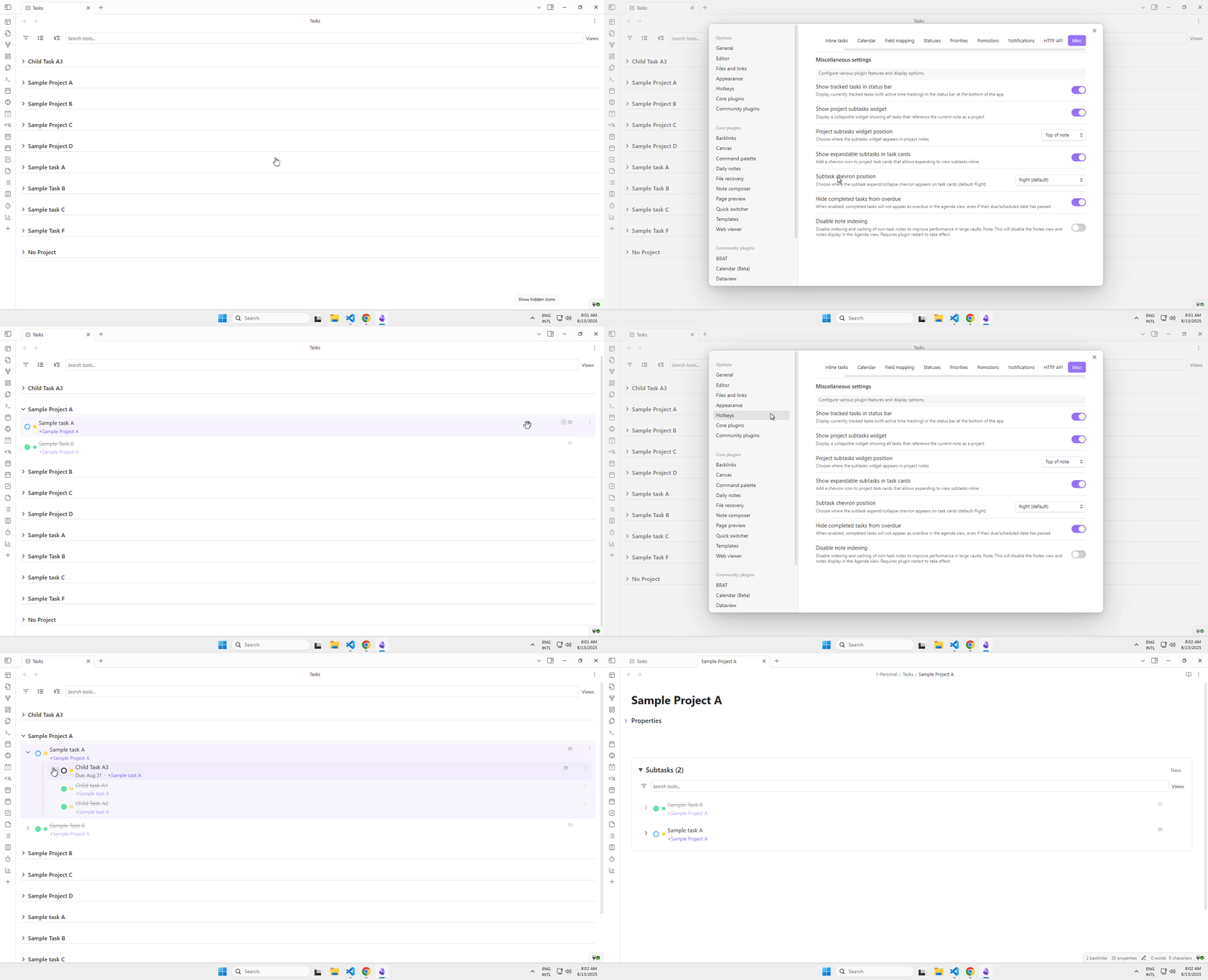
Tasks with subtasks can display an expand/collapse chevron that toggles subtask visibility.
- The chevron can be positioned on the Right (default, hover to show) or on the Left (always visible, matches group chevrons).
- Configure this in
Settings -> TaskNotes -> Appearance(Subtask chevron position).
Migration from v3
See the full Migration Guide (v3 → v4) for all breaking changes.
In v3, TaskNotes provided three separate widgets controlled by individual settings:
showProjectSubtasksandprojectSubtasksPositionshowTaskDependenciesandtaskDependenciesPositionshowBlockingTasksandblockingTasksPosition
These settings are replaced in v4 by:
showRelationshipsandrelationshipsPosition
If you had project subtasks enabled in v3, the relationships widget is enabled automatically after upgrading to v4. The underlying Bases file changed from TaskNotes/Views/project-subtasks.base to TaskNotes/Views/relationships.base. Run the Create default files action in Settings -> TaskNotes -> Integrations if relationships.base is missing.
Natural Language Processing
TaskNotes includes a natural language parser that extracts dates, priority, status, tags, contexts, projects, time estimates, recurrence, and custom property values from task descriptions. The same engine powers the task creation modal, inline conversion, and bulk operations.
See Natural Language Input for the full syntax reference, trigger configuration, auto-suggestion behavior, and language support.