Property Migration
When you change a property name in TaskNotes settings, existing notes using the old property name stop being recognized. TaskNotes detects this and offers to update your files automatically. You can also run a bulk migration from the command palette at any time.
Automatic Migration Prompts
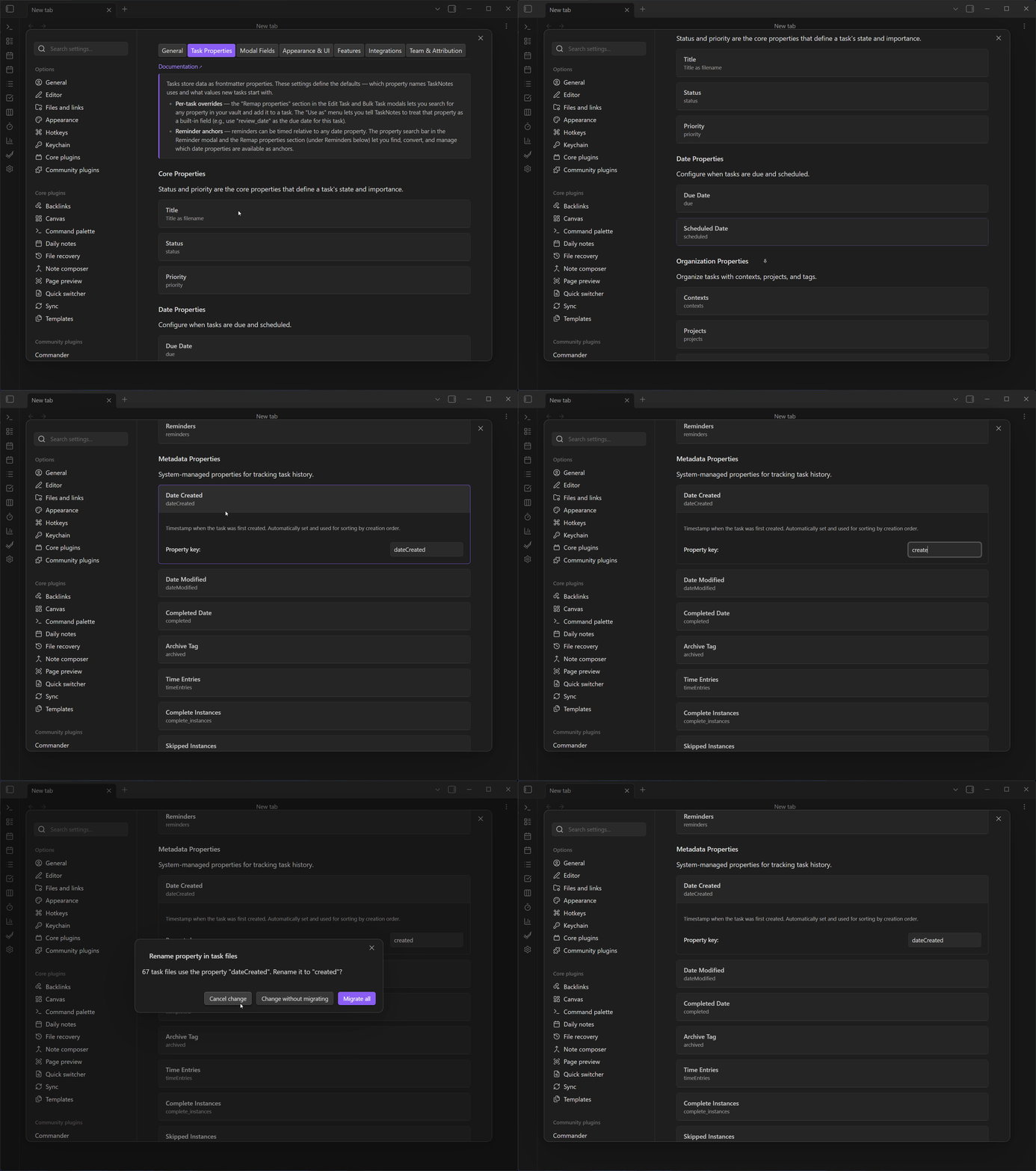
Certain settings changes trigger a migration prompt. When you change one of these settings and press Enter or click away from the field, TaskNotes counts how many files use the old value and shows a confirmation dialog with three options:
| Button | What it does |
|---|---|
| Migrate all | Updates every affected file and saves the new setting |
| Change without migrating | Saves the new setting but leaves your files unchanged |
| Cancel change | Reverts the input to the old value -- nothing changes |
The dialog shows the exact count of affected files before you choose. If no files use the old value, the setting changes silently with no prompt.
Which Settings Trigger Prompts
General settings:
| Setting | What gets migrated |
|---|---|
| Task tag | Renames the tag in each file's tags array |
| Task property name | Renames the frontmatter property key |
| Task property value | Changes the property's value |
Task Properties settings:
| Setting | What gets migrated | Scope |
|---|---|---|
| Type property name | Renames the property key | All vault files |
| Creator field name | Renames the property key | Task folder only |
| Assignee field name | Renames the property key | Task folder only |
Team & Attribution settings:
| Setting | What gets migrated | Scope |
|---|---|---|
| Person type value | Changes the type property's value | Person notes folder only |
| Group type value | Changes the type property's value | Group notes folder only |
Some migrations are scoped to specific folders. Renaming the creator field only affects files in your configured task folder, not every file in the vault. Changing the person type value only touches files in your person notes folder.
The Migration Command
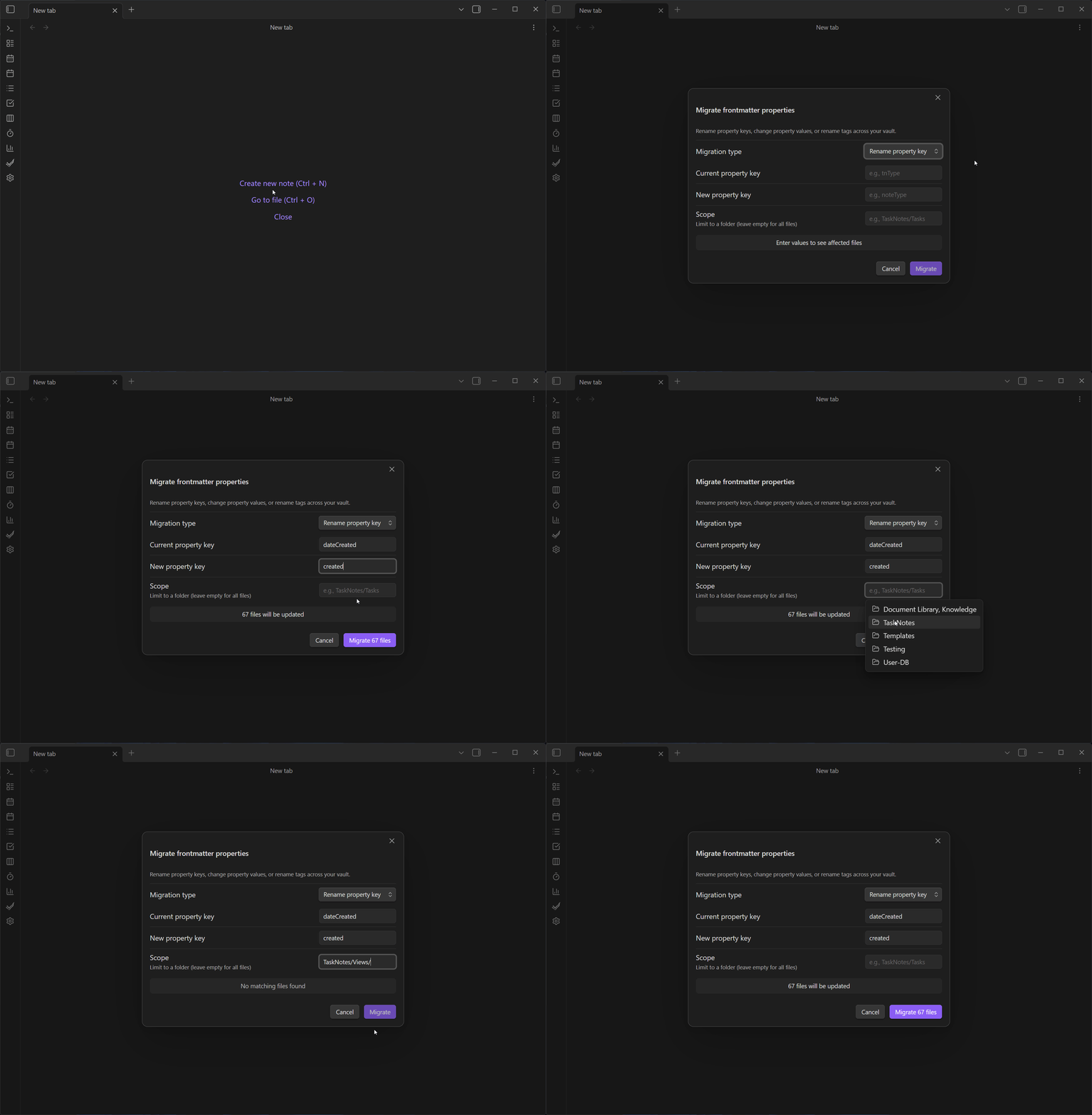
Open the command palette and run TaskNotes: Migrate frontmatter properties for a more flexible migration tool. The migration modal lets you:
Choose a migration type:
- Rename property key (change the frontmatter key name)
- Change property value (change the value for a given key)
- Rename tag (change a tag in
tagsarrays)
Enter the old and new values. For property value changes, you also specify which property to look at.
Set an optional scope. Type a folder path to limit the migration to files under that folder. A folder autocomplete helps you find the right path. Leave it empty to scan the entire vault.
See a live count. As you type, the modal shows how many files match. The count updates in real time using the metadata cache (no file reads, fast on large vaults).
Run the migration. The button shows "Migrate X files" and is disabled until there are matching files and a valid new value. Click it to apply the changes.
After migration completes, a notice shows the count of updated files.
How Migration Works
Migration uses Obsidian's processFrontMatter API to read and rewrite each file's YAML frontmatter. This is the same mechanism Obsidian uses internally for property edits, so it handles edge cases like multi-line values, quotes, and special characters correctly.
For property key renames, the old key is removed and the new key is added with the same value. For value changes, the key stays the same and only the value is updated. For tag renames, the tag is replaced in the tags array (with or without a # prefix).
Files are processed one at a time, not in parallel, to avoid conflicts with Obsidian's file system watchers.
Safety
Migration has several safeguards:
- Count before acting. Both the inline prompt and the migration modal show exactly how many files will be affected before you confirm.
- Three-way choice on inline prompts. You can cancel the entire setting change, not just the migration.
- Folder scoping. Inline migrations scope to the relevant folder where possible (task folder, person notes folder), reducing the blast radius.
- No-op detection. If the old and new values are the same, migration is skipped silently.
- Empty state. If no files match, no prompt is shown for inline migrations, and the migration modal disables the button.
There is no built-in undo for migrations. If you need to reverse a migration, run the migration command again with the old and new values swapped. Obsidian's File Recovery core plugin can also help recover individual files.
Related
- Settings for the settings that can trigger migrations
- Custom Properties for managing custom fields
- Core Concepts for how properties work in TaskNotes