Team and Attribution
In a shared vault, TaskNotes maps each device to a person note so tasks are automatically attributed, assignees can be picked from a list, and notifications filter to show only your work. Everything runs inside Obsidian — no external server or account system. Person and group identities are regular Markdown files in your vault.
flowchart TB
    subgraph VAULT["Shared Vault (synced via Obsidian Sync, iCloud, git, etc.)"]
        direction TB

        subgraph PEOPLE["Person & Group Notes (User-DB/)"]
            P1["Alice Chen
type: person"]
            P2["Bob Rivera
type: person"]
            G1["Platform Team
type: group
members: Alice, Bob"]
        end

        subgraph TASKS["Task Notes"]
            T1["Review report
creator: Alice
assignee: Platform Team"]
            T2["Fix bug
creator: Bob
assignee: Alice"]
        end
    end

    subgraph DEV1["Alice's Laptop"]
        U1["UUID: a3f8...
(localStorage — never synced)"]
    end

    subgraph DEV2["Bob's iPad"]
        U2["UUID: 7c2b...
(localStorage — never synced)"]
    end

    U1 -. "registered to" .-> P1
    U2 -. "registered to" .-> P2
    P1 -- "member of" --> G1
    P2 -- "member of" --> G1
    P1 -. "auto-set creator" .-> T2
    P2 -. "auto-set creator" .-> T1
    G1 -. "assignee resolves to
Alice + Bob" .-> T1

    style VAULT fill:#1a1a2e,stroke:#555,color:#ccc
    style DEV1 fill:#2a2a2a,stroke:#888,color:#ccc
    style DEV2 fill:#2a2a2a,stroke:#888,color:#ccc
    style PEOPLE fill:#1a2e1a,stroke:#3a9a5c,color:#ccc
    style TASKS fill:#1a2233,stroke:#4a86c8,color:#ccc
    style U1 fill:#332a1a,stroke:#c87a2a,color:#ccc
    style U2 fill:#332a1a,stroke:#c87a2a,color:#ccc
    style P1 fill:#1a2e1a,stroke:#3a9a5c,color:#ccc
    style P2 fill:#1a2e1a,stroke:#3a9a5c,color:#ccc
    style G1 fill:#1a2e1a,stroke:#3a9a5c,color:#ccc
    style T1 fill:#1a2233,stroke:#4a86c8,color:#ccc
    style T2 fill:#1a2233,stroke:#4a86c8,color:#ccc
Before using shared vault features, you need person notes in your vault (one per team member). Optionally, create group notes for team-based assignment. See Person Notes and Group Notes below.
How it works in three steps:
- Register once — each device gets a UUID stored in
localStorage. You map it to your person note in Settings → Team & Attribution. - Create tasks normally — TaskNotes auto-fills the
creatorfield with your person note. Assign tasks to people or groups via the picker. - Notifications filter automatically — enable "Only notify for my tasks" and you only see notifications for tasks assigned to you (or a group you belong to).
Device Identity
Every device that opens the vault gets a unique UUID stored in localStorage:
- Not synced — Obsidian Sync, iCloud, and git do not touch
localStorage - Persists across Obsidian restarts
The UUID lives in Obsidian's local app data (localStorage), not in the vault. If you reinstall Obsidian, clear app data, or switch to a new Obsidian installation, the old UUID is lost and a new one is generated. You will need to re-register the device to your person note in Settings > Team & Attribution. Existing tasks created with the old device are unaffected — they reference your person note by name, not by device ID.
TaskNotes also detects a human-readable device name from the platform (e.g., "Windows PC", "Mac", "iPhone"). You can set a custom name in settings.
ℹ How device identification works under the hood
UUID generation: TaskNotes calls the Web Crypto API (crypto.randomUUID()) to generate a standard UUID v4 — a 128-bit random identifier like a3f8d2e1-7b4c-4a9f-8e5d-6f1a2b3c4d5e. On older platforms without crypto.randomUUID, it falls back to Math.random()-based generation.
Storage: The UUID is saved to localStorage under a TaskNotes-specific key. localStorage is a browser/Electron storage API that is per-device and per-vault — it lives in the app's local data directory, not in the vault folder. Sync services (Obsidian Sync, iCloud, git) never see it because it is not a file.
Device name detection: TaskNotes reads navigator.platform and navigator.userAgent (standard browser APIs exposed by Electron) to detect the operating system:
| Platform string | Detected name |
|---|---|
Win* |
Windows PC |
Mac* |
Mac |
Mac* + iPad user agent |
iPad |
Mac* + iPhone user agent |
iPhone |
Linux* |
Linux PC |
Linux* + Android user agent |
Android Device |
You can override this with a custom name in Settings > Team & Attribution.
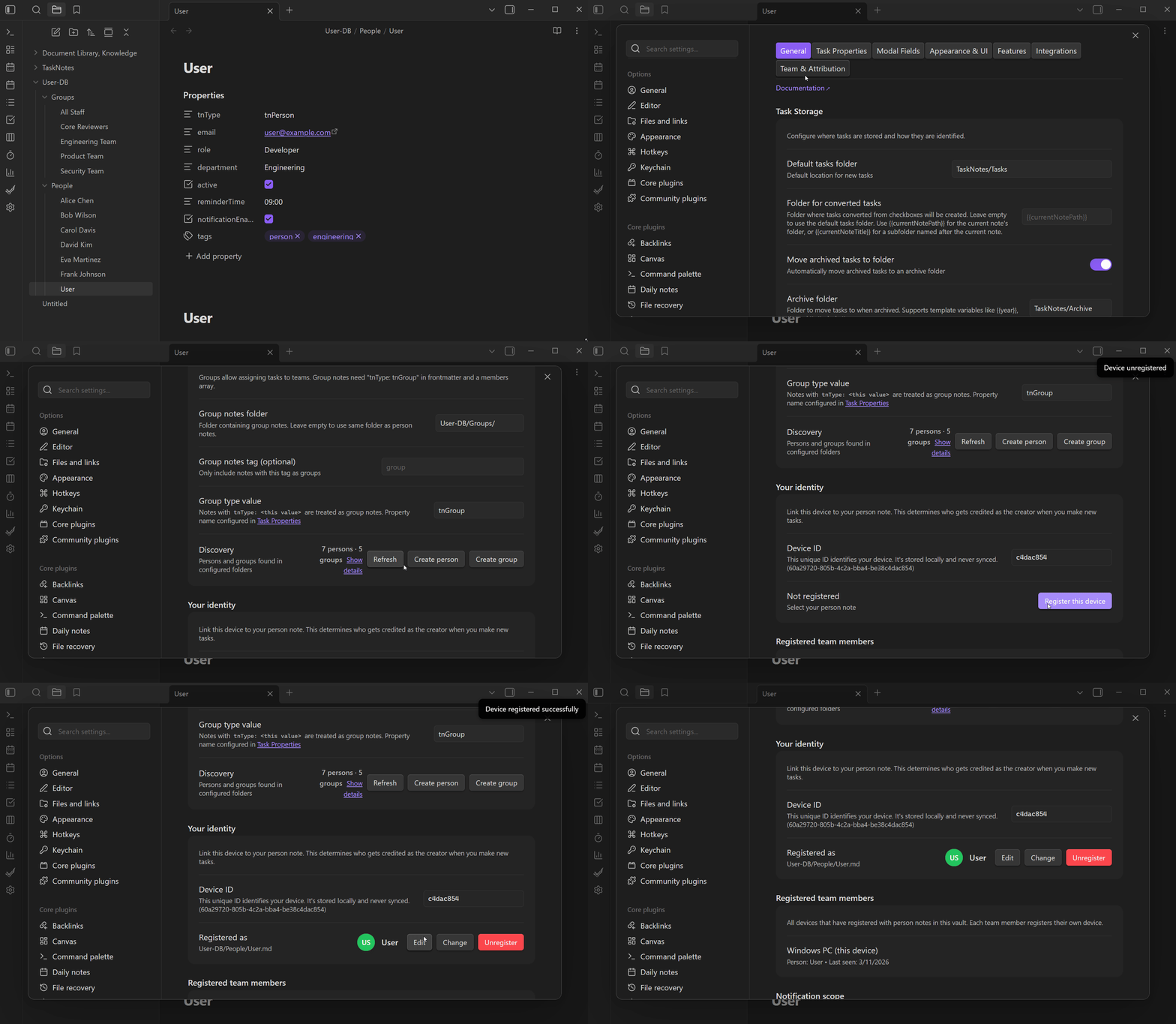
ℹ Your Identity section in settings
The "Your Identity" section shows your device's UUID, detected platform name, and which person note you are mapped to. From here you can:
- Register your device to a person note (opens a file selector showing all person notes)
- Change your mapping to a different person
- Unregister your device (removes the mapping)
- Set a custom device name (e.g., "Work Laptop" instead of "Windows PC")
All registered devices are shown in the "Team Members" section below, with their device name, person mapping, and last seen timestamp.
Person Notes
A person note is a Markdown file with type: person in its frontmatter:
---
type: person
title: Alice Chen
role: Engineer
department: Platform
availableFrom: "09:00"
availableUntil: "17:00"
---
TaskNotes discovers person notes by scanning a folder you configure (e.g., User-DB/). You can also add a tag filter if you want to be more selective.
| Person notes are used for | How |
|---|---|
| Task attribution | Creator field auto-set to your person note as a wikilink ([[Alice Chen]]) |
| Assignee selection | Person/group picker in task modals and bulk operations |
| Avatar rendering | Colored initials in views and the Upcoming View |
| Notification preferences | Availability windows and reminder lead times that override global defaults |
💡 Custom type property
The type property name and value are both configurable. If your vault already uses a different convention (like role: team-member), change the property name and value in Settings > Team & Attribution. See Property Migration for bulk-renaming existing notes.
Group Notes
Groups are notes with type: group and a members array of wikilinks:
---
type: group
title: Platform Team
members:
  - "[[Alice Chen]]"
  - "[[Bob Rivera]]"
  - "[[DevOps Team]]"
---
Groups can nest — DevOps Team above could be another group with its own members. TaskNotes resolves nested groups recursively (up to 10 levels deep) and detects cycles.
flowchart LR
    G1["Platform Team"] --> P1["Alice Chen"]
    G1 --> P2["Bob Rivera"]
    G1 --> G2["DevOps Team"]
    G2 --> P3["Carol Kim"]
    G2 --> P4["Dave Park"]

    style G1 fill:#1a2e1a,stroke:#3a9a5c,color:#ccc
    style G2 fill:#1a2e1a,stroke:#3a9a5c,color:#ccc
    style P1 fill:#2a2a2a,stroke:#888,color:#ccc
    style P2 fill:#2a2a2a,stroke:#888,color:#ccc
    style P3 fill:#2a2a2a,stroke:#888,color:#ccc
    style P4 fill:#2a2a2a,stroke:#888,color:#ccc
Groups appear in the person/group picker when assigning tasks, in notification filtering (if you are a member of an assigned group, you get notified), and in the discovery panel in settings.
ℹ Discovery panel
The Team & Attribution settings tab includes a discovery panel that shows all found persons and groups:
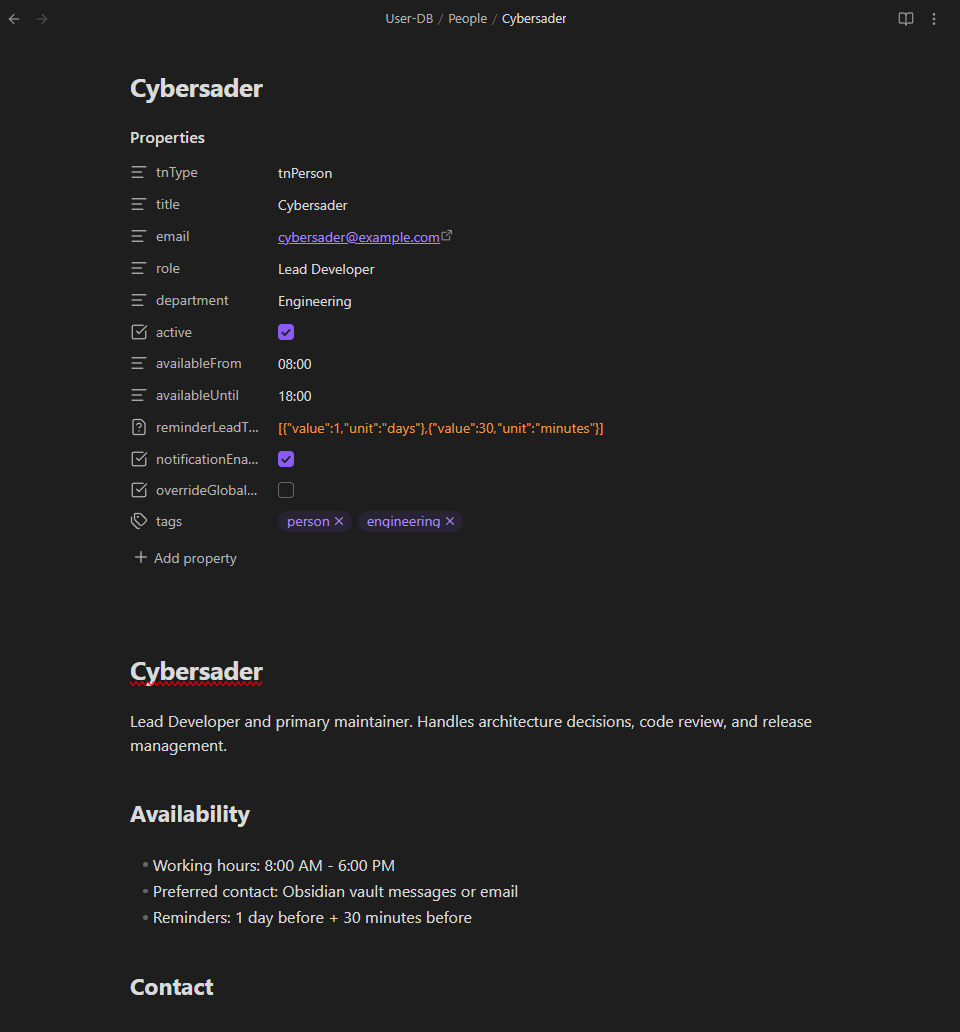
- Persons are listed with colored avatar initials, display name, and optional role/department fields
- Groups show their display name and members inline
- Empty states guide you to create person or group notes if none are found
The panel updates when you change the folder or tag filter settings.
Creator and Assignee
TaskNotes uses two frontmatter fields for attribution:
| Field | Default name | Purpose | Set by |
|---|---|---|---|
| Creator | creator |
Who created the task | Auto-set on creation |
| Assignee | assignee |
Who the task is assigned to | Manual or via bulk operations |
Both are stored as wikilinks (e.g., [[Alice Chen]]). The assignee field can hold a single person, a group, or an array of multiple assignees.
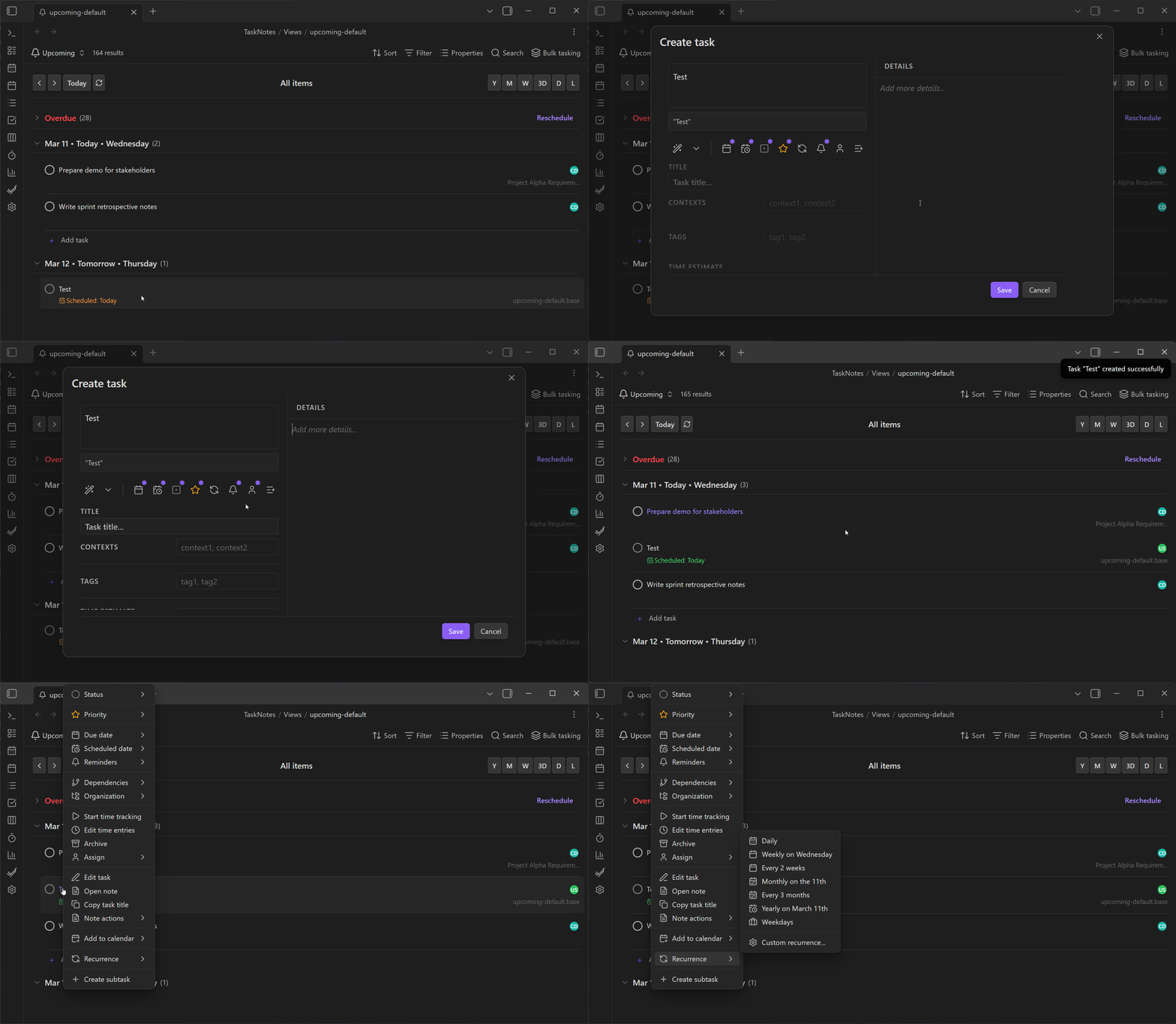
Person/group picker: Task modals and the bulk tasking action bar include a picker that shows all discovered persons and groups. Start typing to filter, or scroll through the list. Groups show their member count.
💡 Customizing field names
Both field names are configurable. If you want to use owner instead of creator, or assigned_to instead of assignee, change them in Settings > Team & Attribution and TaskNotes will read and write using your chosen names.
Assignee-Aware Notifications
When "Only notify for my tasks" is enabled, the notification system checks each task before showing it. See also Reminders for per-task and global reminder configuration, and View Notifications for query-based alerts.
flowchart LR
    N["Notification
triggered"] --> L["Look up
device → person"]
    L --> C{"Assignee
includes me?"}
    C -- "Yes (direct or via group)" --> S["Show
notification"]
    C -- "No" --> F["Filter out
silently"]

    style N fill:#332a1a,stroke:#c87a2a,color:#ccc
    style L fill:#2a2a2a,stroke:#888,color:#ccc
    style C fill:#1a2233,stroke:#4a86c8,color:#ccc
    style S fill:#1a2e1a,stroke:#3a9a5c,color:#ccc
    style F fill:#2a1a1a,stroke:#c84a4a,color:#ccc
If the assignee is a group, TaskNotes resolves it to all member persons recursively. You only see notifications for tasks assigned to you or to a group you belong to.
This setting is per-device — each person can independently choose whether to filter or see everything.
Settings
These settings are in Settings > Team & Attribution:
Person notes:
| Setting | Default | Description |
|---|---|---|
| Person notes folder | (empty) | Folder to scan for person notes |
| Person notes tag | (empty) | Optional tag filter for person discovery |
| Type property name | type |
Frontmatter property used to identify persons and groups |
| Person type value | person |
Value that marks a note as a person |
Group notes:
| Setting | Default | Description |
|---|---|---|
| Group notes folder | (falls back to person folder) | Folder to scan for group notes |
| Group notes tag | (empty) | Optional tag filter for group discovery |
| Group type value | group |
Value that marks a note as a group |
Attribution:
| Setting | Default | Description |
|---|---|---|
| Auto-set creator | On | Automatically fill in the creator field when creating tasks |
| Creator field name | creator |
Frontmatter property name for the task creator |
| Assignee field name | assignee |
Frontmatter property name for the task assignee |
Notification filtering:
| Setting | Default | Description |
|---|---|---|
| Only notify for my tasks | Off | Filter notifications to only show tasks assigned to you or your groups |
Related
- View Notifications for the notification system that supports assignee filtering
- Reminders for per-task reminders
- Custom Properties for adding fields like assignee to task modals