Task Management
This page covers task creation, projects, dependencies, and automation. For the underlying architecture, see Core Concepts.
Creating and Editing Tasks
The primary method is the Task Creation Modal, accessed via the "Create new task" command or by clicking dates/time slots in calendar views. The modal provides fields for title, status, priority, due dates, and all other task properties.
ℹ Task Creation Modal
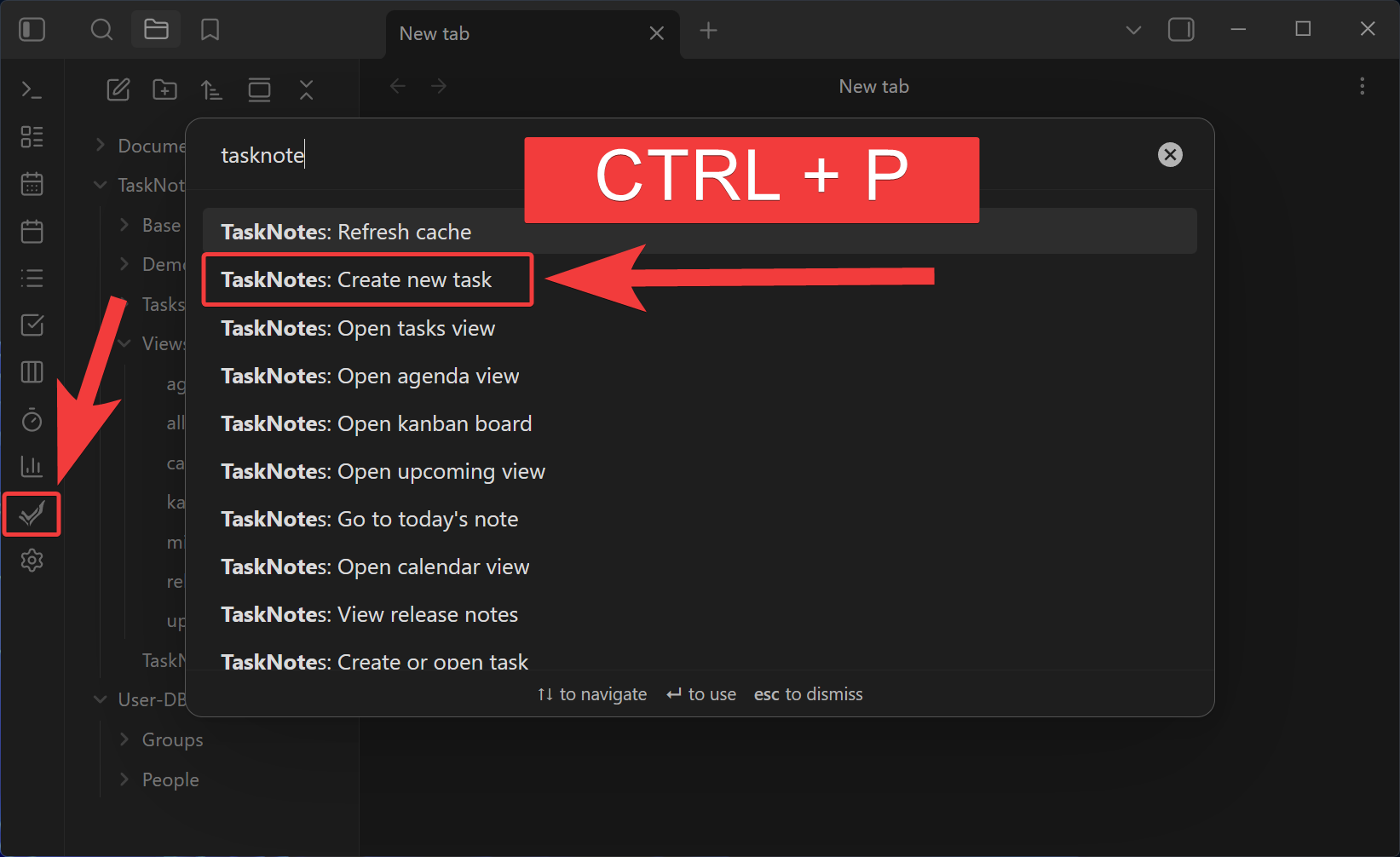
When creating a task, the title is automatically sanitized to remove characters forbidden in filenames.
TaskNotes also supports natural language creation — typing "Buy groceries tomorrow at 3pm @home #errands high priority" automatically sets the due date, tag, context, and priority. In most workflows, users combine both approaches: fast capture with natural language, then structured edits in the modal when more precision is needed.
For the full NLP syntax reference, trigger configuration, and auto-suggestion behavior, see Natural Language Input.
Auto-Suggestions
The natural language input field activates auto-suggestions when you type trigger characters:
| Trigger | What it shows |
|---|---|
@ |
Contexts from existing tasks |
# |
Tags from existing tasks |
+ |
Vault files as project suggestions |
* |
Configured status options |
For project card configuration, enhanced search, and status suggestion details, see Natural Language Input — Auto-Suggestions.
Task Properties
Tasks store their data in YAML frontmatter with properties for status, priority, dates, contexts, projects, tags, time estimates, recurrence, and reminders. Custom fields can extend this structure.
This frontmatter-first design keeps task data editable and portable while supporting consistent behavior across views and widgets.
For property types and examples, see Core Concepts. For configuration options, see Task Properties Settings.
Projects
TaskNotes supports organizing tasks into projects using note-based linking. Projects are represented as links to actual notes in your vault, allowing you to leverage Obsidian's linking and backlinking features for project management.
This model avoids creating a separate project database. Any note can become a project anchor, and task/project relationships remain visible through normal Obsidian link tooling.
Project Assignment
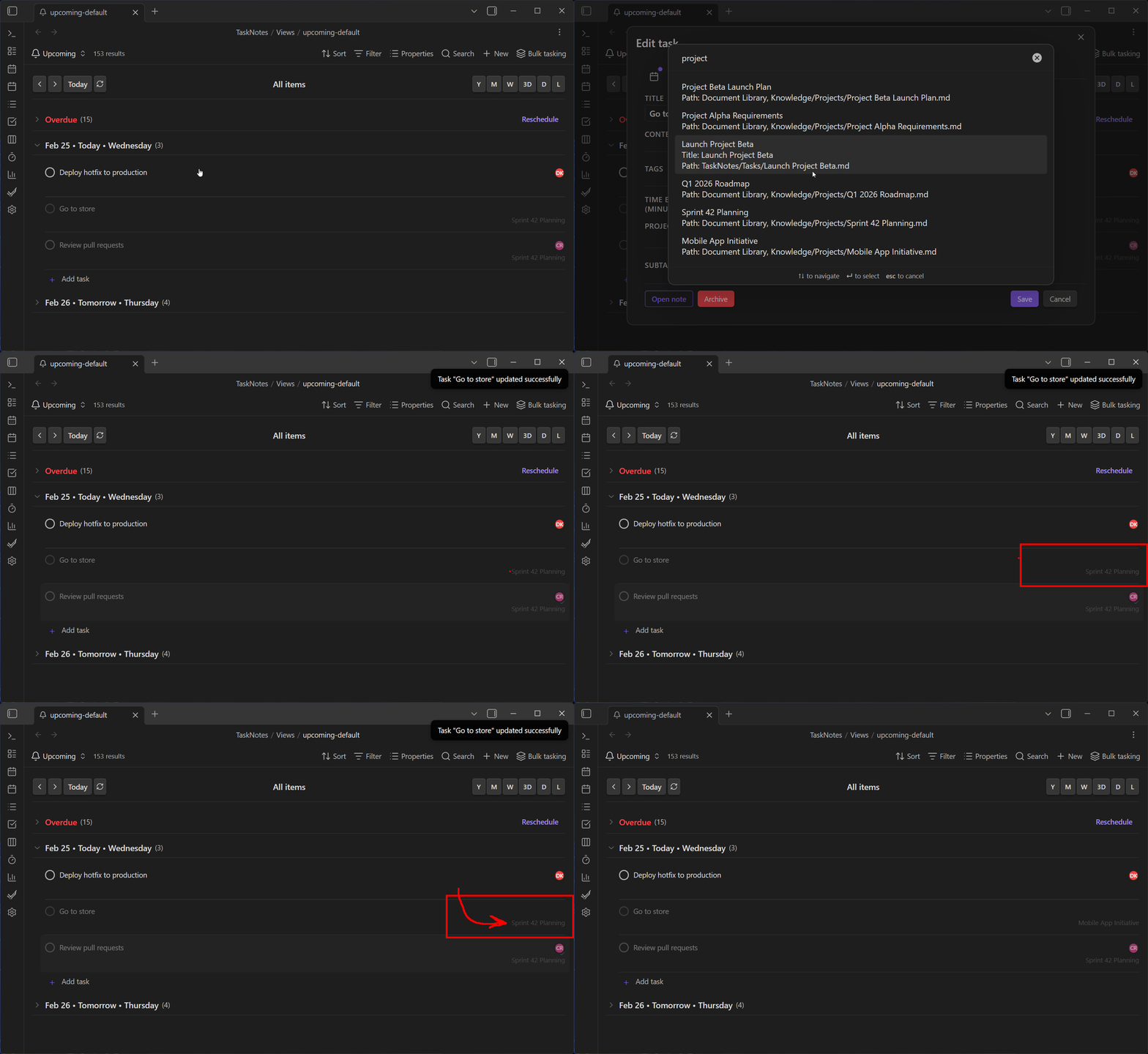
Tasks can be assigned to one or more projects through the task creation or editing interface. When creating or editing a task, click the "Add Project" button to open the project selection modal. This modal provides fuzzy search functionality to quickly find and select project notes from your vault.
For project-based workflows end-to-end, see Workflow Examples — Project-Centered Planning.
Project Links
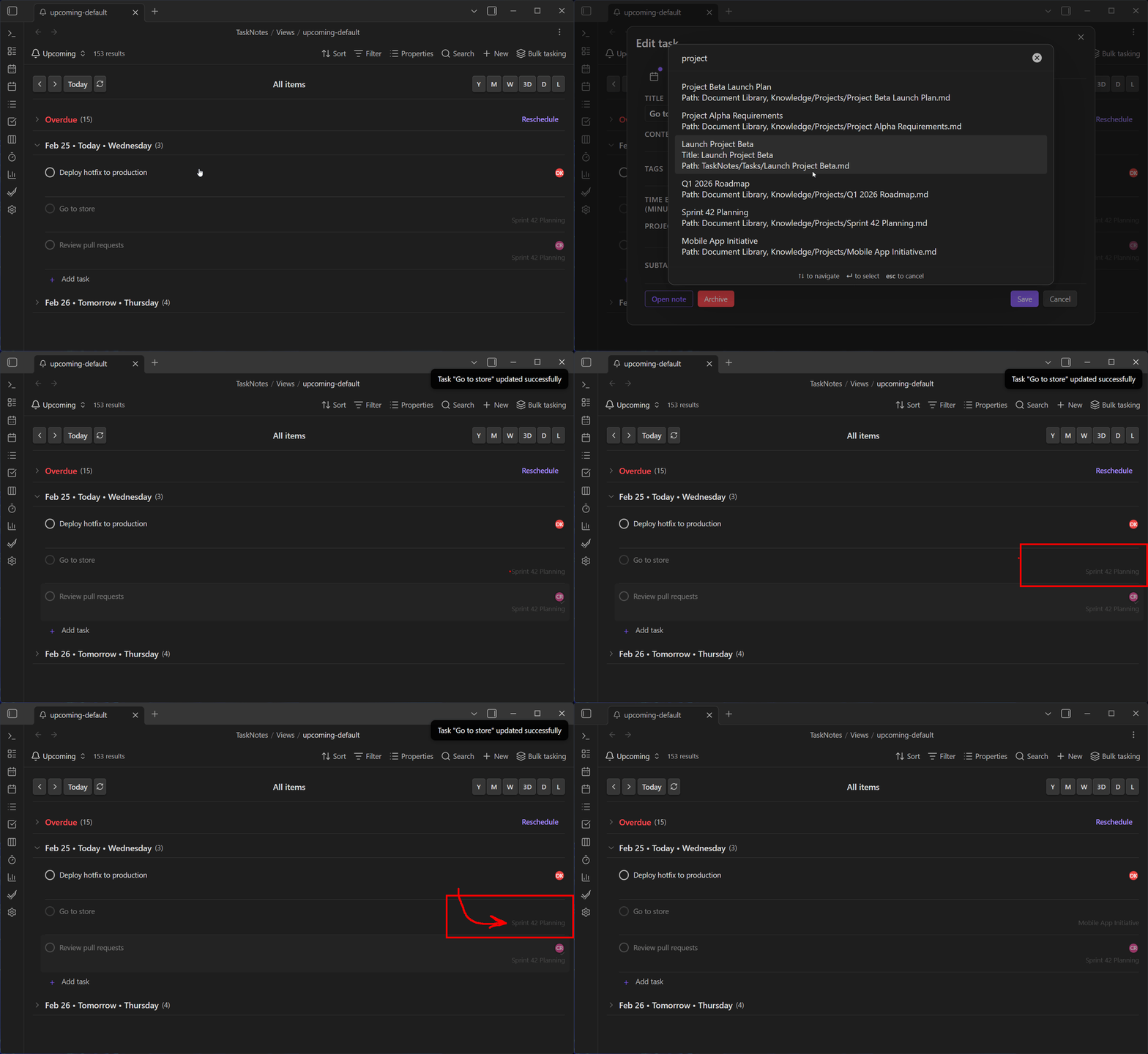
Projects are stored as wikilinks in the task's frontmatter (e.g., projects: ["[[Project A]]", "[[Project B]]"]). These links are clickable in the task interface and will navigate directly to the project notes when clicked. Any note in your vault can serve as a project note simply by being linked from a task's projects field.
Organization and Filtering
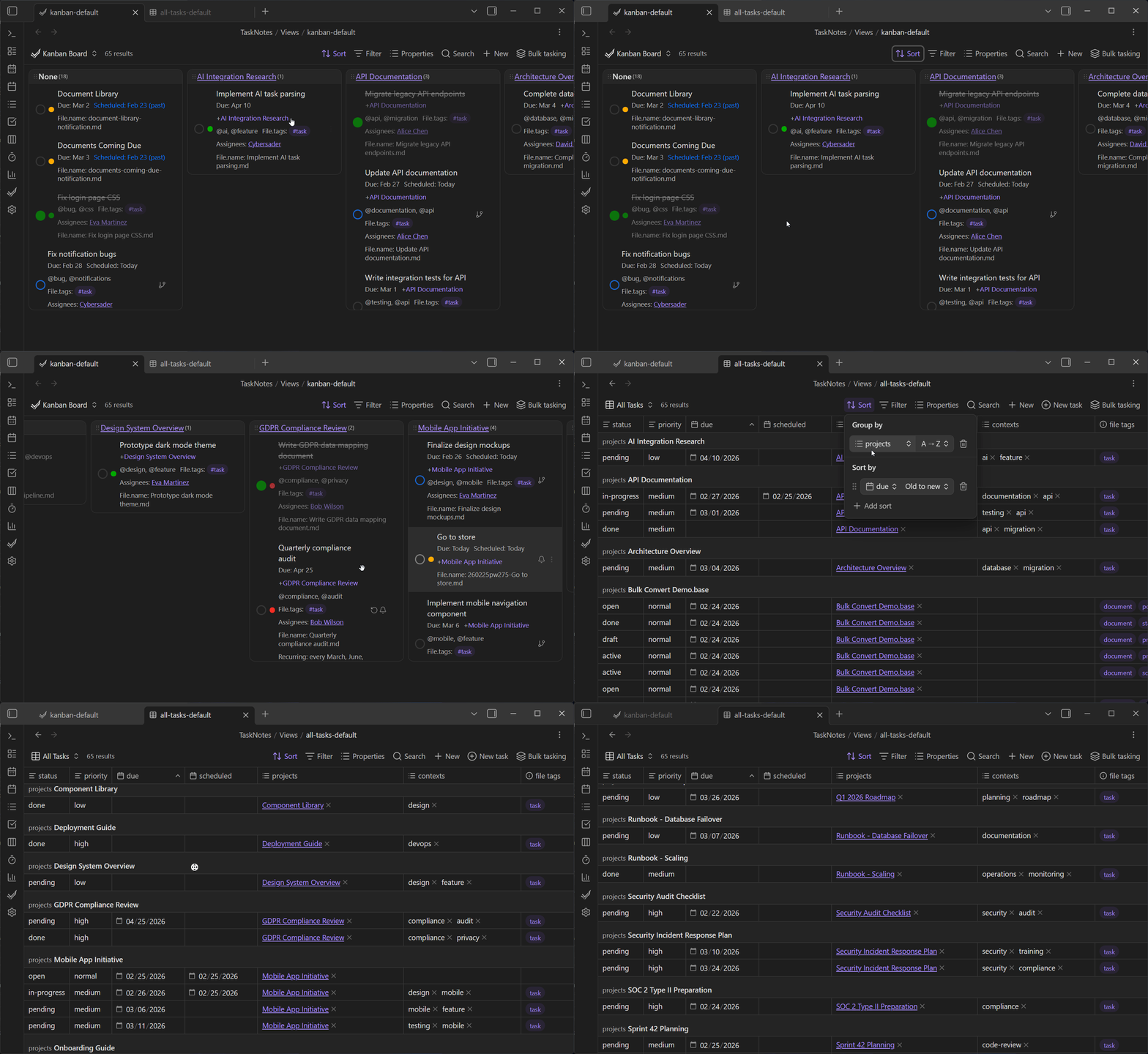
Tasks can be filtered and grouped by their associated projects in all Bases-driven task views. Use the Bases filter editor to add note.projects conditions, and configure the grouping menu to organize Task List or Kanban boards by project. Tasks assigned to multiple projects will appear in each relevant project group, providing flexibility in project-based organization.
Project Indicators
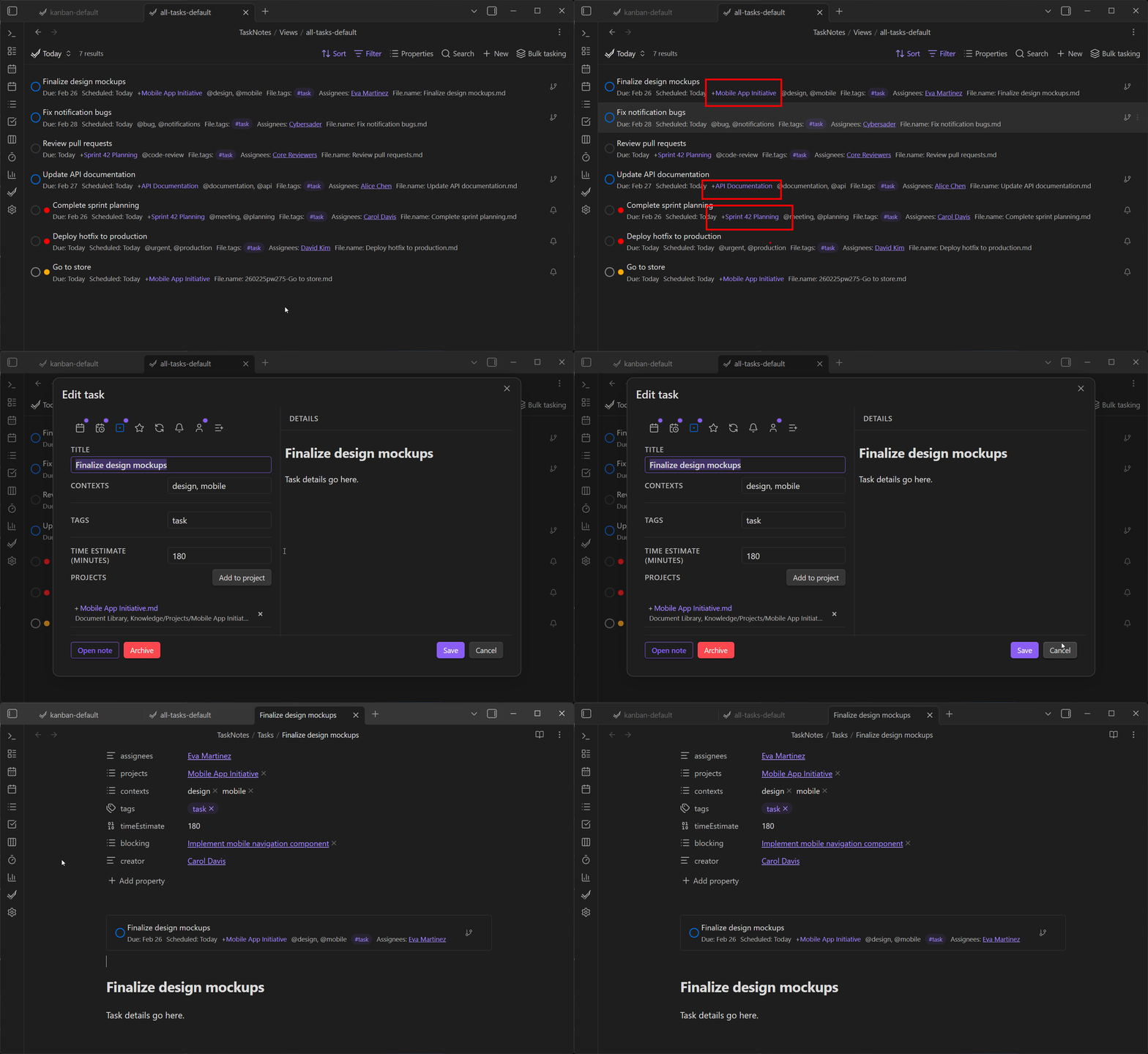
TaskCards display visual indicators when tasks are used as projects. These indicators help identify which tasks have other tasks linked to them as subtasks, making project hierarchy visible at a glance.
Subtask Creation
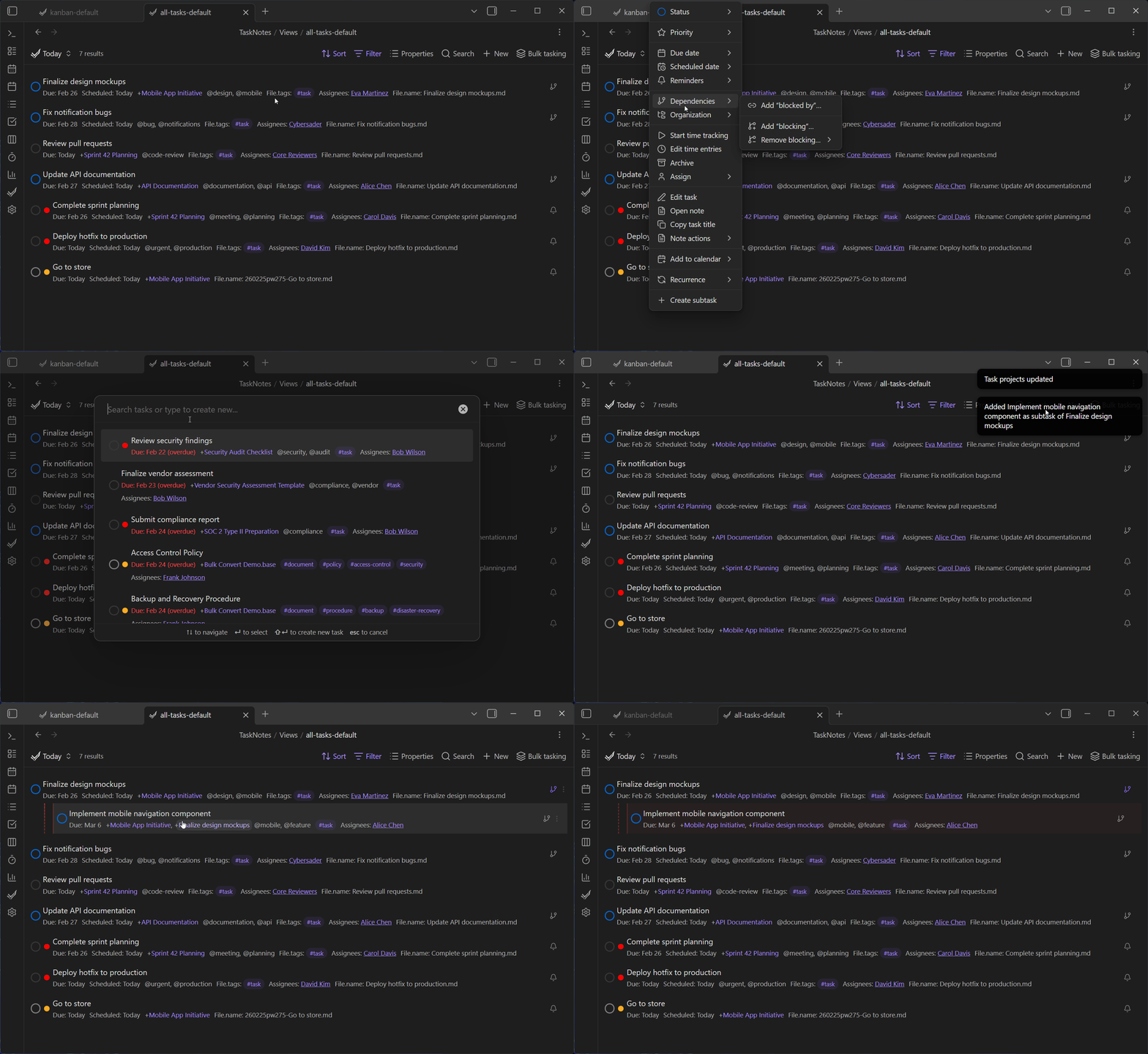
Tasks can have subtasks created directly from their context menu. When viewing a task that serves as a project, you can select "Create subtask" to create a new task automatically linked to the current project.
For how subtasks fit into project workflows, see Workflow Examples — Project-Centered Planning.
Dependencies
Task dependencies capture prerequisite work. Dependencies are stored in the blockedBy frontmatter field. The simplest form is a list of wikilinks:
blockedBy:
  - "[[Run staging environment tests]]"
  - "[[Security review for launch]]"
📋 Advanced: RFC 9253 structured format
Dependencies also support a structured format with relationship type and gap:
blockedBy:
  - uid: "[[Operations/Order hardware]]"
    reltype: FINISHTOSTART
    gap: P1D
uidreferences the blocking task via wikilinkreltypedefaults toFINISHTOSTARTfor dependencies created in the UIgapis optional, uses ISO 8601 duration syntax (e.g.,PT4H,P2D)
Both formats are recognized. The UI creates simple wikilink entries by default.
Whenever a dependency is added, TaskNotes updates the upstream note's blocking list so the reverse relationship stays synchronized. Removing a dependency automatically clears both sides.
Selecting dependencies in the UI
- The task creation and edit modals expose "Blocked by" and "Blocking" buttons that launch a fuzzy task selector. The picker only offers valid tasks, excludes the current note, and prevents duplicate entries.
- The task context menu provides the same selector, enabling dependency management directly from the Task List, Kanban, and calendar views.
- Task cards show a fork icon whenever a task blocks other work. Clicking it expands an inline list of downstream tasks without triggering the parent card's modal, so you can inspect dependents in place.
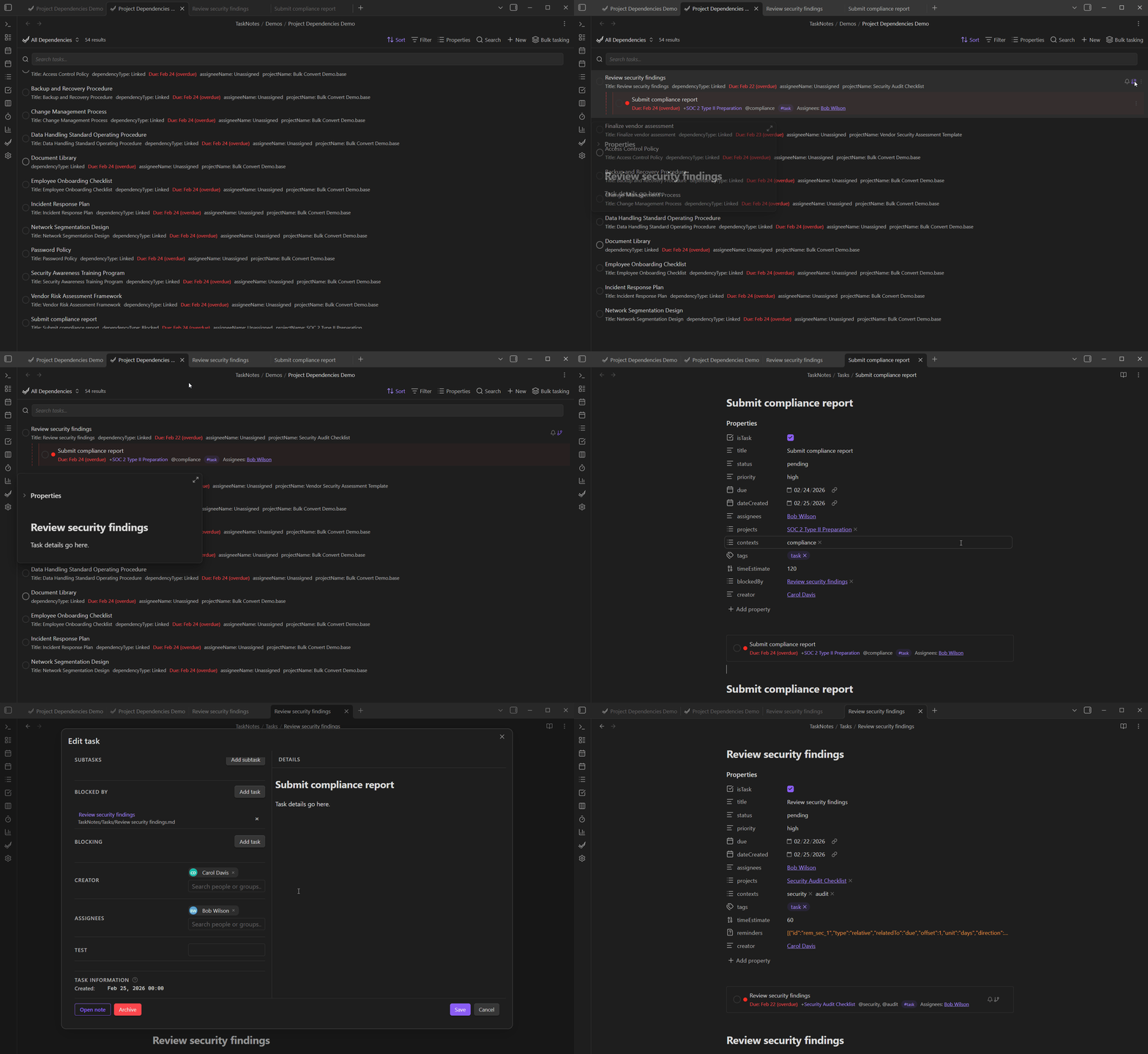
These controls currently create and manage finish-to-start style blockers. Advanced reltype values and gap data are preserved in frontmatter, but blocking evaluation is currently based on whether unresolved dependencies exist rather than relationship-type-specific scheduling rules.
Automation
Auto-Archiving
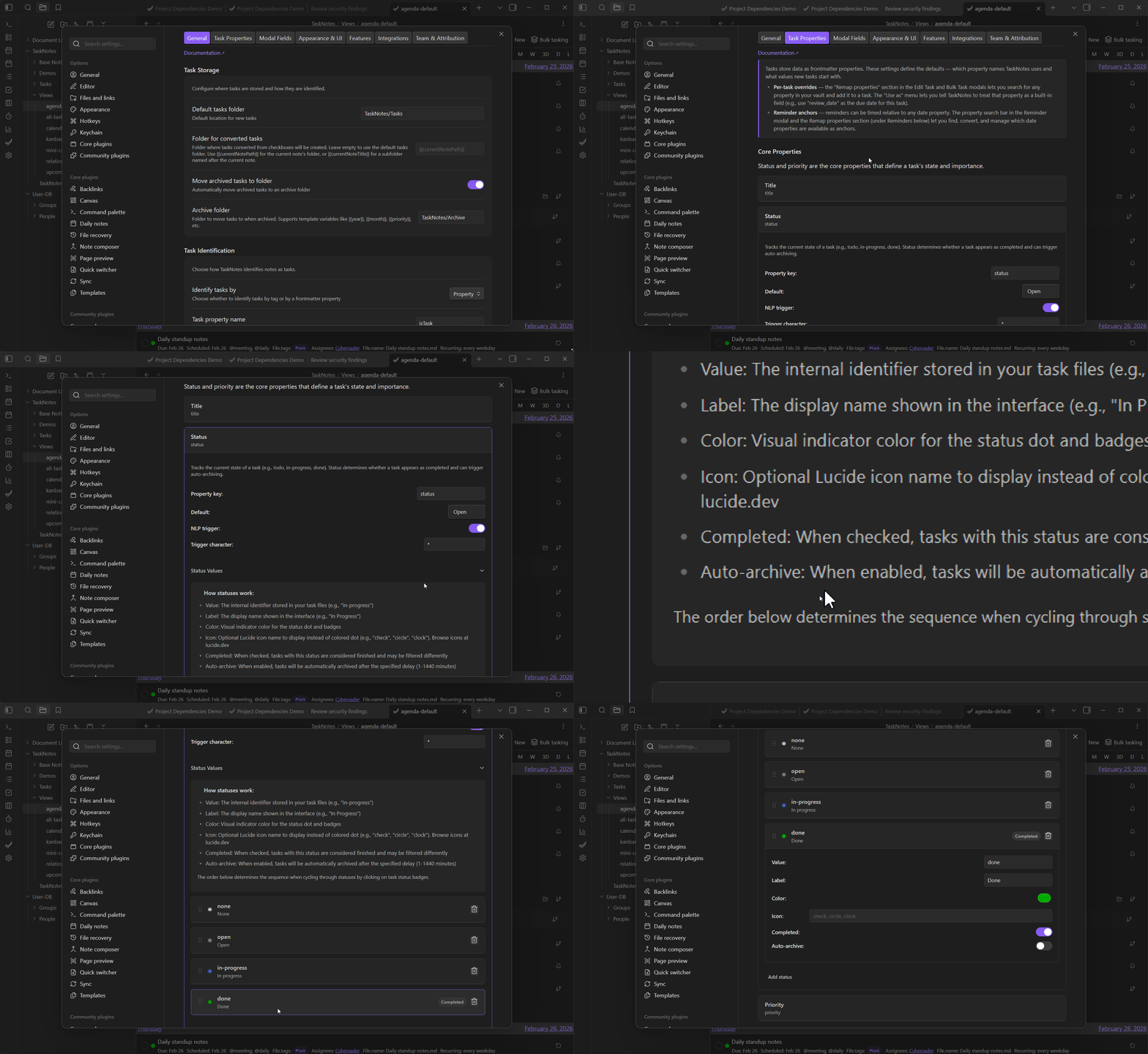
TaskNotes can automatically archive tasks when they transition into a completed status. This keeps finished work out of your active lists without manual cleanup.
Go to Settings → Task Properties → Task Statuses. Each status card has an Auto-archive toggle and a Delay input (1–1440 minutes).
When auto-archive is enabled for a status:
- Any task moved into that status is queued for archiving after the configured delay
- Moving the task to a different status before the timer expires cancels the pending archive
- The queue persists across plugin restarts — pending archives resume when the plugin loads
Related
- Natural Language Input — NLP parsing, trigger characters, auto-suggestions, project card config
- Inline Task Integration — Editor widgets, instant conversion, relationships widget
- Bulk Tasking — Batch create, convert, or edit tasks from any view
- Custom Properties — Register custom fields for modal UI, autocomplete, and NLP
- Property Mapping — Remap property names to core fields, per-task or per-view
- Recurring Tasks — RRule-based repetition with independent instance completion
- Task Reminders — Relative and absolute notification offsets
- Folders & Filenames — Task folder routing, filename patterns, archive behavior
- Template Variables — Variables available in task body templates