Filename Templates
Filename templates are configured in Settings → Task Properties → Title card. Turn OFF "Use title as filename", then choose a format (Zettelkasten, Timestamp, or Custom template). See Task Properties → Title for the setting card and Folders & Filenames for folder path configuration.
TaskNotes supports custom filename templates for task files. This page is the detailed variable reference — covering every available variable, examples, collision handling, and best practices.
Settings → Task Properties → Title
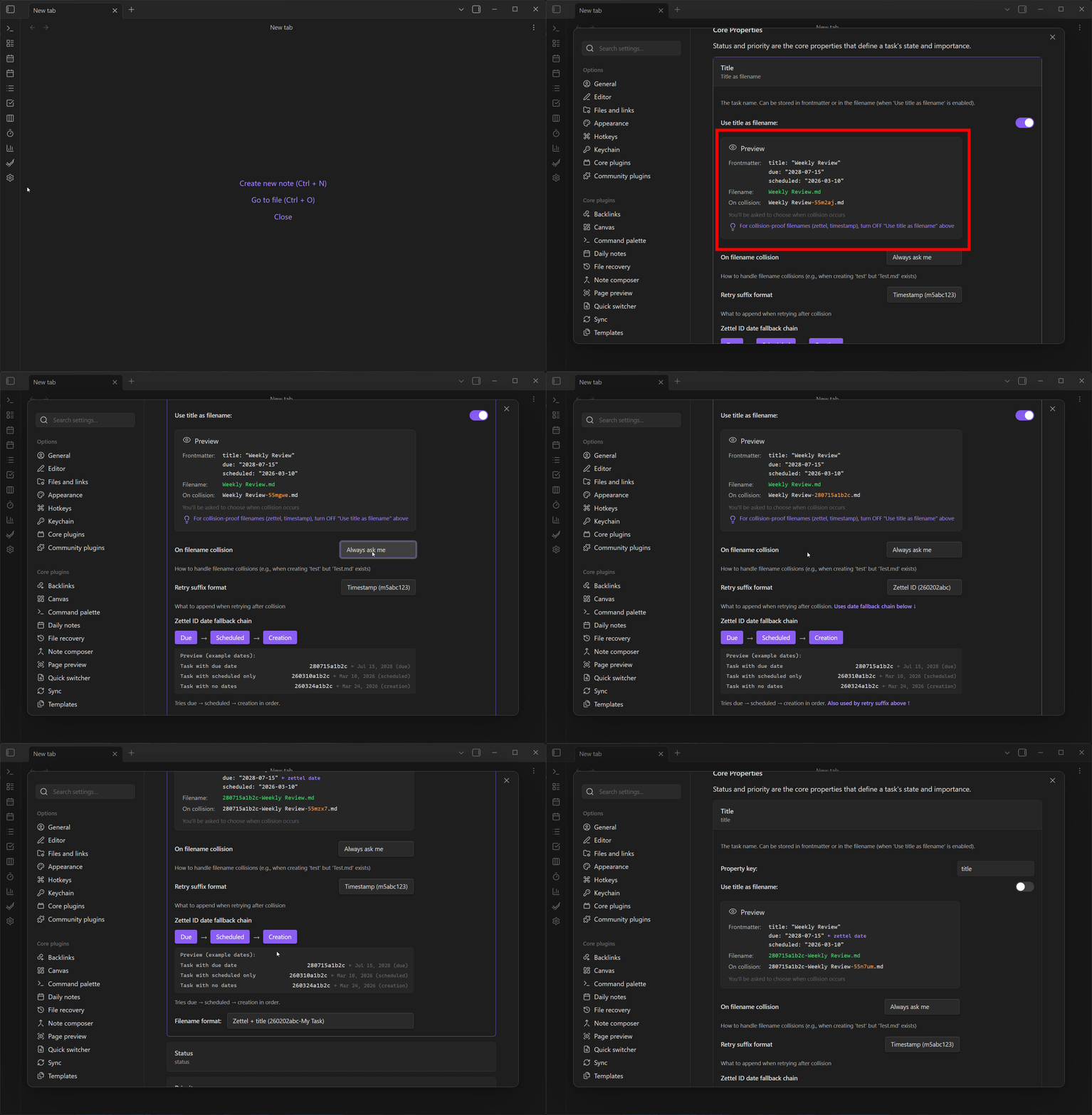
Quick Start
- Go to Settings → Task Properties → Title
- Turn OFF "Use title as filename"
- Select Custom template from the Filename format dropdown
- Enter your template using the variables below
Supported Variables
| Variable | Description | Example Output |
|---|---|---|
{{title}} |
The task title | Weekly Review |
{{zettel}} |
Zettel ID (YYMMDD + base36 time) | 260202a1b2c |
{{timestamp}} |
Unix timestamp in base36 | m5abc123 |
{{dueDate}} |
Due date in YYYY-MM-DD format | 2028-07-15 |
{{scheduledDate}} |
Scheduled date in YYYY-MM-DD format | 2026-03-10 |
{{createdDate}} |
Creation date in YYYY-MM-DD format | 2026-02-02 |
{{random}} |
Random 3-character suffix | k3f |
{{randomLong}} |
Random 6-character suffix | x7m2p9 |
{{milliseconds}} |
Milliseconds (000-999) | 042 |
{{millisecondsPadded}} |
Same as milliseconds (padded to 3 digits) | 042 |
Aliases
For convenience, shorter aliases are available:
| Alias | Same As |
|---|---|
{{due}} |
{{dueDate}} |
{{scheduled}} |
{{scheduledDate}} |
{{created}} |
{{createdDate}} |
Legacy Syntax
Single-brace syntax ({title}) is supported for backwards compatibility but double-brace ({{title}}) is recommended to avoid conflicts with other template systems.
Example Templates
Date-Prefixed Tasks
{{createdDate}}-{{title}}
Result: 2026-02-02-Weekly Review.md
Zettel-Style with Title
{{zettel}}-{{title}}
Result: 260202a1b2c-Weekly Review.md
Due Date Organization
{{dueDate}}-{{title}}
Result: 2028-07-15-Weekly Review.md
Scheduled + Title
{{scheduledDate}}_{{title}}
Result: 2026-03-10_Weekly Review.md
Collision-Proof with Random
{{title}}-{{random}}
Result: Weekly Review-k3f.md
Full Date Chain
{{title}}-{{dueDate}}{{scheduledDate}}
Result: Weekly Review-2028-07-152026-03-10.md
Note: If a date field is not set on a task, it will be empty in the filename. Consider using separators that handle this gracefully.
Empty Date Handling
When a date variable is used but the task doesn't have that date set:
{{dueDate}}→ empty string (nothing){{scheduledDate}}→ empty string (nothing){{createdDate}}→ always has a value (task creation time)
Tip: Safe Templates
If you want dates in your filename but not all tasks have dates, structure your template so missing dates don't create awkward filenames:
{{title}}{{dueDate}}
- With due date:
Weekly Review2028-07-15.md - Without due date:
Weekly Review.md
Collision Handling
If a filename already exists (collision), TaskNotes can automatically append a suffix based on your "Retry suffix format" setting:
| Suffix Format | Example |
|---|---|
| Timestamp | Weekly Review-m5abc1.md |
| Random | Weekly Review-k3f.md |
| Zettel ID | Weekly Review-260202a1b2c.md |
When using "Zettel ID" as the retry suffix, it respects your Zettel ID date fallback chain setting (Due → Scheduled → Creation).
Best Practices
- For sortable files: Start with a date (
{{createdDate}}-{{title}}) - For unique files: Include
{{zettel}}or{{timestamp}} - For readable files: Keep
{{title}}in the template - For collision-proof: Use
{{zettel}}or{{random}}
Related Settings
- Zettel ID date fallback chain: Controls which date is used for the YYMMDD portion of zettel IDs
- On filename collision: How to handle when a filename already exists
- Retry suffix format: What to append when retrying after collision