Features Settings
These settings allow you to enable, disable, and configure the various features of the plugin, such as inline tasks, natural language processing, the Pomodoro timer, and notifications.
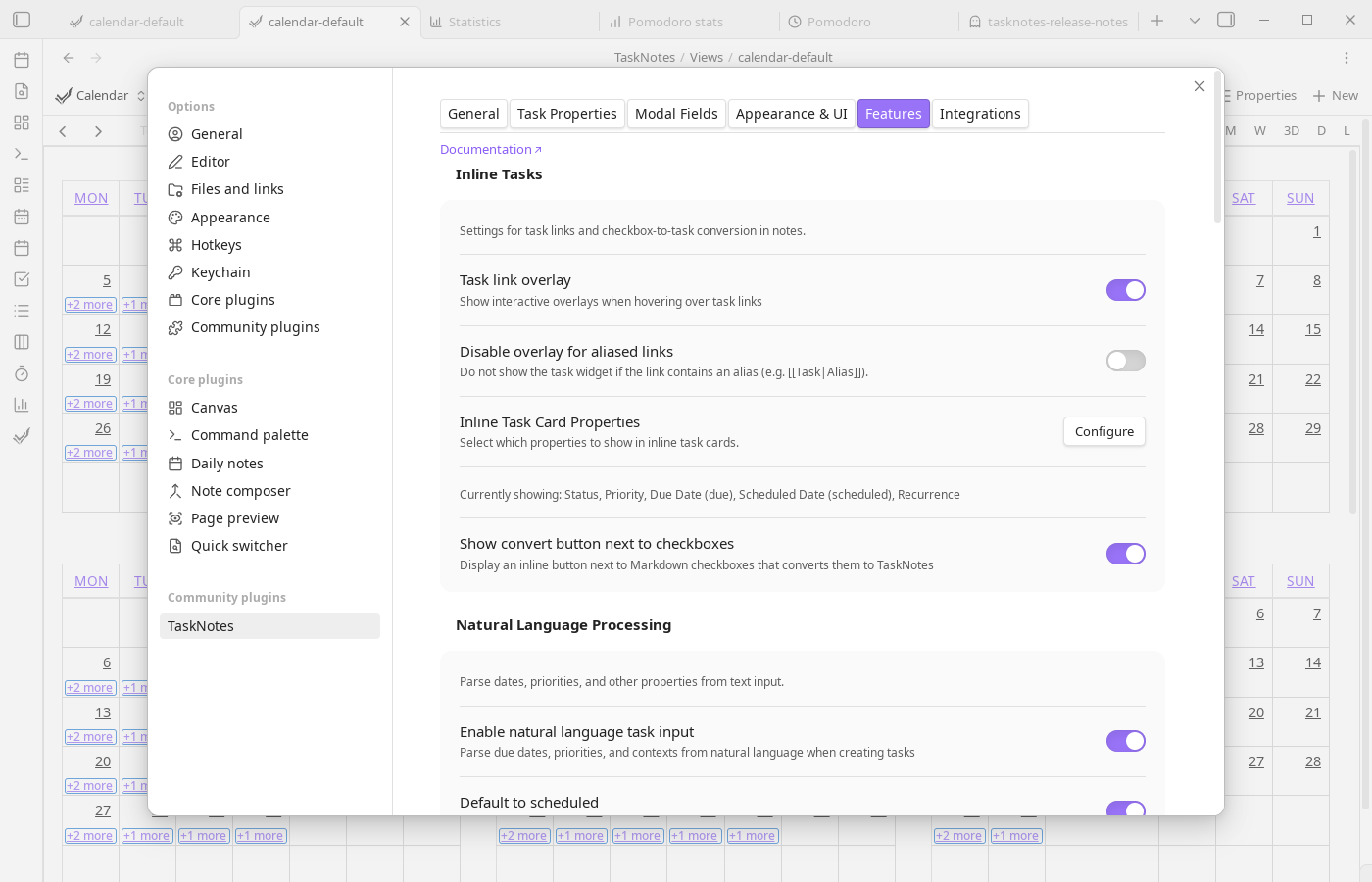
Inline Tasks
Inline task settings control how aggressively TaskNotes turns plain note content into structured task interactions. Task link overlay enables the Live Preview card behavior for task links, while Instant task convert surfaces conversion buttons next to list items and checkboxes. For conversion output, Inline task convert folder sets destination behavior and supports {{currentNotePath}}, and Use task defaults on instant convert applies your default task values at conversion time.
Body Template
Body template settings let you scaffold newly created tasks with consistent note content. When enabled, TaskNotes reads the configured template file and expands variables like {{title}}, {{date}}, {{time}}, {{priority}}, {{status}}, {{contexts}}, {{tags}}, and {{projects}}.
Natural Language Processing
NLP settings define how text input is interpreted during task capture. Enable natural language task input activates date and metadata parsing, Default to scheduled changes ambiguous date handling, NLP language selects parsing patterns, and Status suggestion trigger controls optional status autocomplete activation.
Pomodoro Timer
Pomodoro settings control interval lengths, long-break cadence, optional auto-start behavior, and end-of-session notifications/sound. Pomodoro data storage chooses whether history is kept in plugin data or daily notes.
Notifications
Enable reminders globally and choose the delivery type (in-app toast, system desktop notifications, or both). The "Send test" button fires a test notification to verify your setup.
Per-category behavior (advanced): Expand this section to control how each time category (overdue, due today, due tomorrow, this week, scheduled) behaves after dismissal — snooze duration, bell count visibility, and popup visibility. This gives fine-grained control over which notifications are persistent vs awareness-only.
For full details on the toast, bell icon, snooze, and seen tracking, see Notification Delivery. For what generates notifications, see Reminders and View Notifications.
Performance & Behavior
These settings let you trade off completeness for speed, and fine-tune interaction feel.
| Setting | Default | Description |
|---|---|---|
| Hide completed from overdue | Off | When enabled, completed tasks are excluded from overdue sections even if their dates are in the past. Keeps overdue lists focused on actionable items. |
| Disable note indexing | Off | Skips indexing of non-task notes to reduce overhead in large vaults. Task workflows still work, but features that rely on non-task note lookups (e.g., note-oriented UI elements) will have reduced functionality. Restart recommended after changing. |
| Suggestion debounce | 0 ms | Delay before autosuggestion queries fire. Increase if suggestions cause lag in very large vaults. |
Time Tracking
Time tracking options handle completion behavior. You can automatically stop running timers when a task is completed and optionally show a confirmation notification.
Recurring Tasks
Use Maintain due date offset in recurring tasks to keep due/scheduled spacing consistent when recurring tasks roll forward.
Timeblocking
Timeblocking enables lightweight daily-note scheduling blocks and controls whether those blocks are visible by default in calendar views.
Usage
In the calendar view, click and drag on a time slot to select a time range. A context menu will appear—select "Create timeblock" to create a timeblock (this option only appears if timeblocking is enabled in settings). Drag existing timeblocks to move them. Resize edges to adjust duration.