Upcoming View
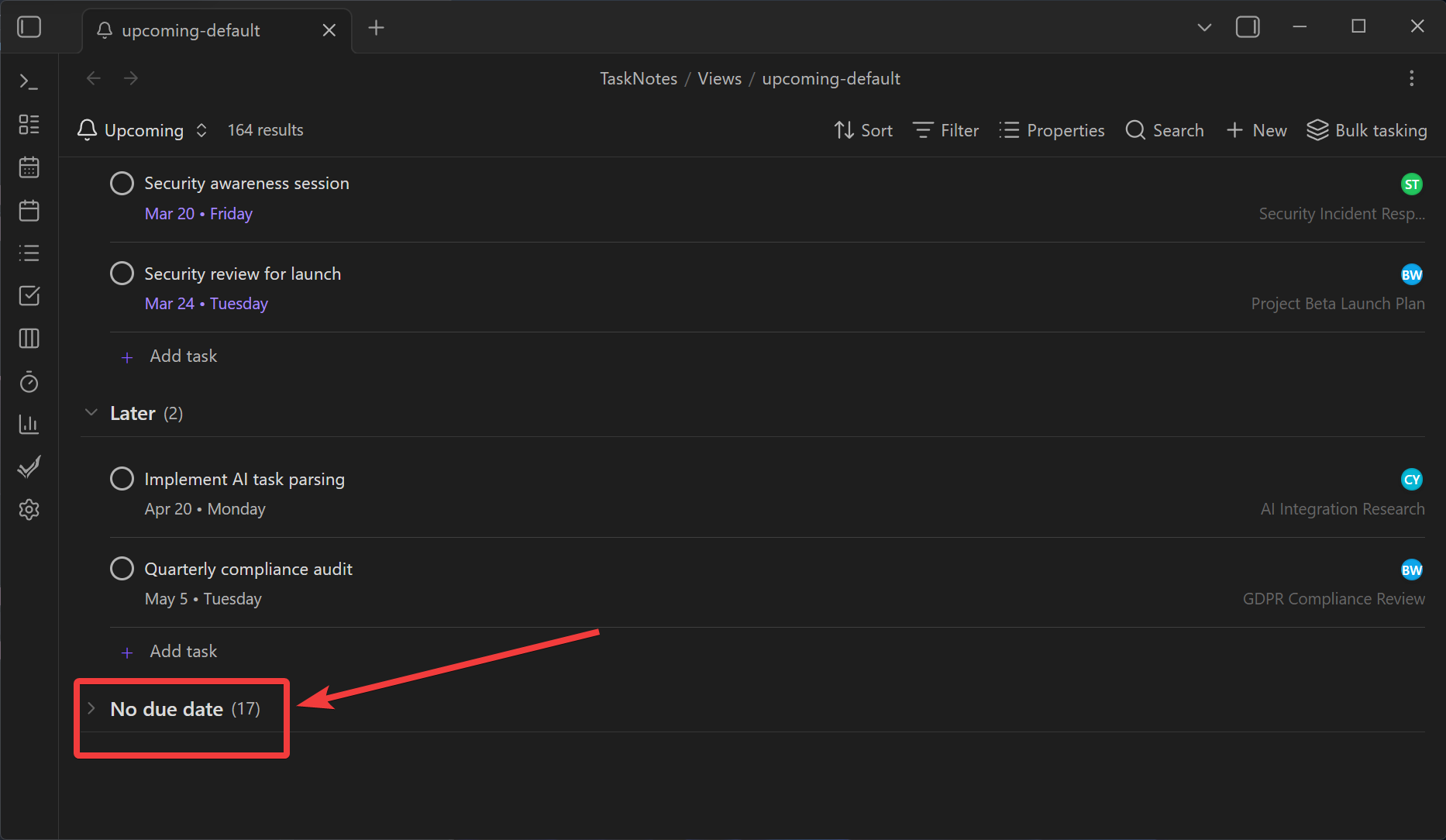
The Upcoming View groups your tasks by when they are due and lays them out in a single, scrollable list. Overdue items sit at the top in red. Today and tomorrow follow. Further out, tasks fall into This Week, This Month, Later, and a collapsible No Due Date section. Navigate through time with period selectors or jump straight to today.
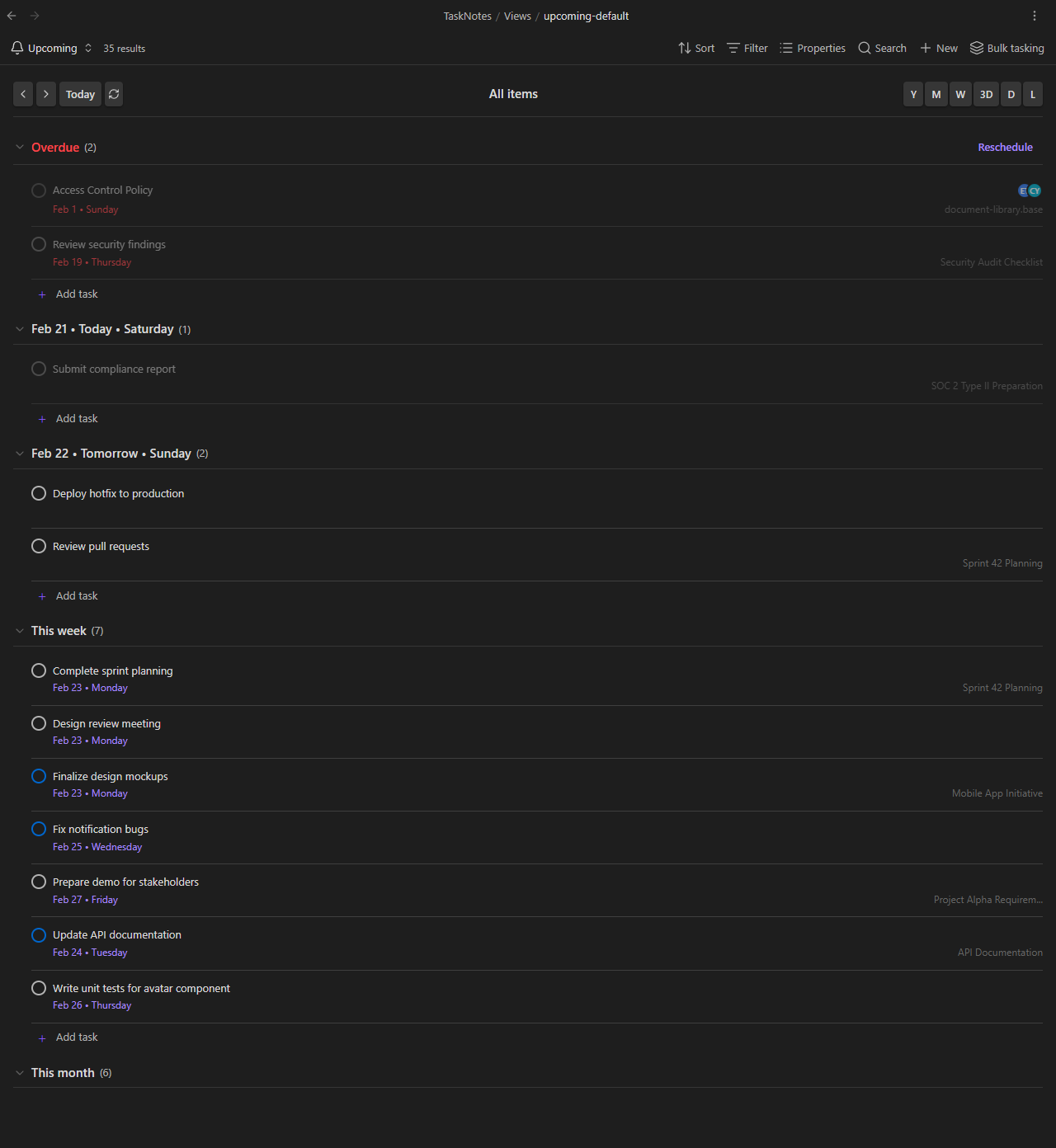
The Upcoming View respects per-task property remapping. If a task has tnDueDateProp: next_assessment_due in its frontmatter, the view reads the due date from next_assessment_due instead of the default due property. This means tasks converted with property mapping show up in the correct time category automatically. The same applies to scheduled dates via tnScheduledDateProp.
How to Open It
Open the Upcoming View from the command palette with TaskNotes: Open upcoming view.
Like all TaskNotes views, it is a .base file. You can duplicate it, add your own filters, or embed it in a workspace layout. The view type is tasknotesUpcoming:
views:
  - type: tasknotesUpcoming
    name: Upcoming
Time Categories
Tasks are sorted into categories based on their due date relative to today:
| Category | When | Color |
|---|---|---|
| Overdue | Due before today | Red |
| Today | Due today | Green |
| Tomorrow | Due tomorrow | Orange |
| This Week | Due within 7 days | Default |
| This Month | Due within 30 days | Default |
| Later | Due more than 30 days out | Default |
| No Due Date | No due date set | Default (collapsed by default) |
Within each category, items are sorted alphabetically by title. Overdue items always appear regardless of the selected period.
Each section header shows the category name, an icon, and a count of items. Click the header to collapse or expand the section.
Navigation
A navigation bar at the top of the view lets you move through time and choose how much to show at once.
Left side:
- < > arrows step forward and backward by one period
- Today jumps back to the current date
- Refresh re-runs the view query
Center: Shows the current date range (e.g., "Jan 20 - Jan 26, 2026" for a week view).
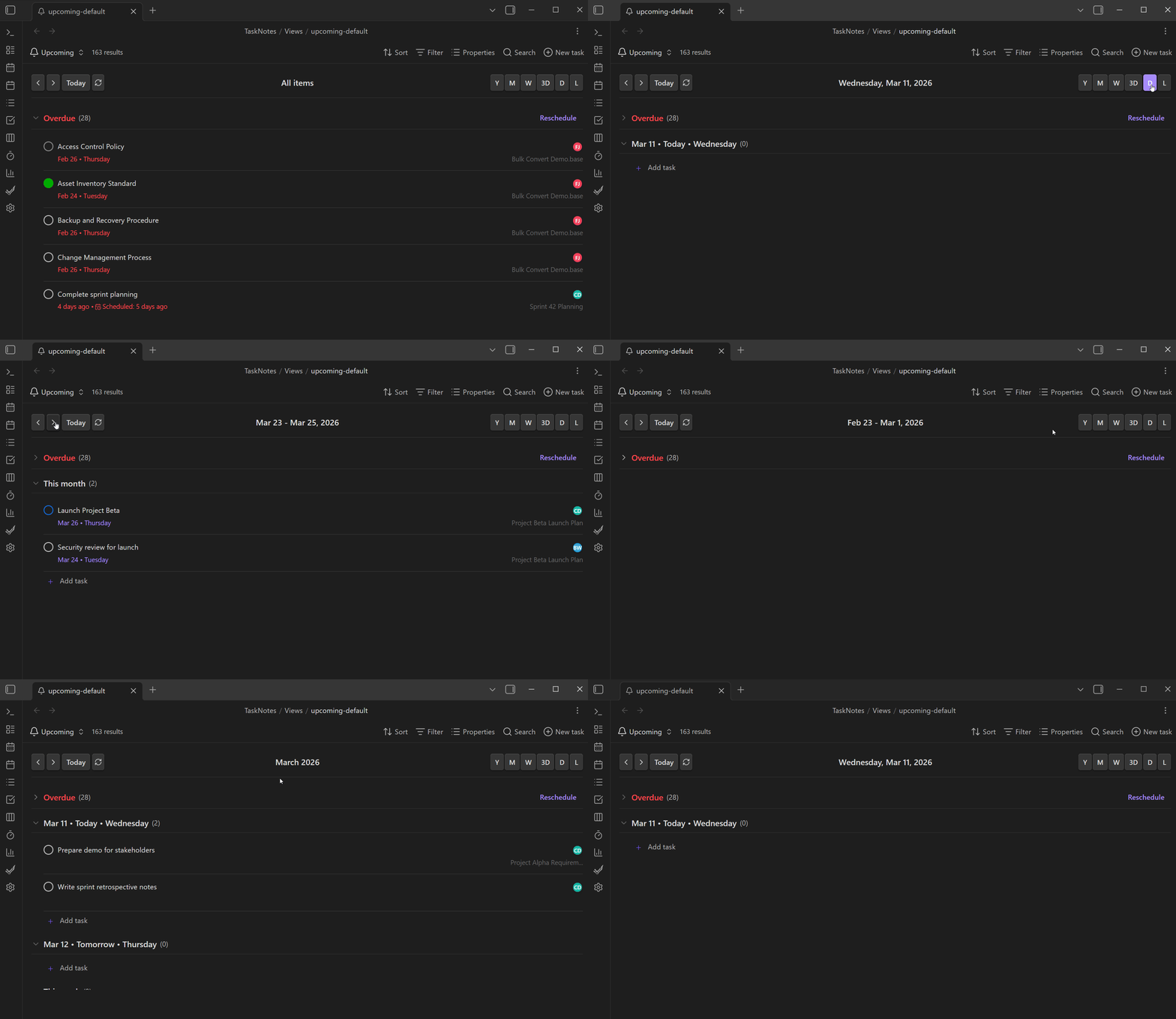
Right side -- period selectors:
| Button | Period | Shows |
|---|---|---|
| Y | Year | All tasks due this calendar year |
| M | Month | All tasks due this calendar month |
| W | Week | Monday through Sunday of the current week |
| 3D | 3 Days | Today plus the next two days |
| D | Day | Just today (plus overdue) |
| L | List (default) | Everything, no date range filter |
Your period selection is saved per device and remembered across sessions. In List mode the arrow buttons are disabled since everything is already shown.
Adding Tasks
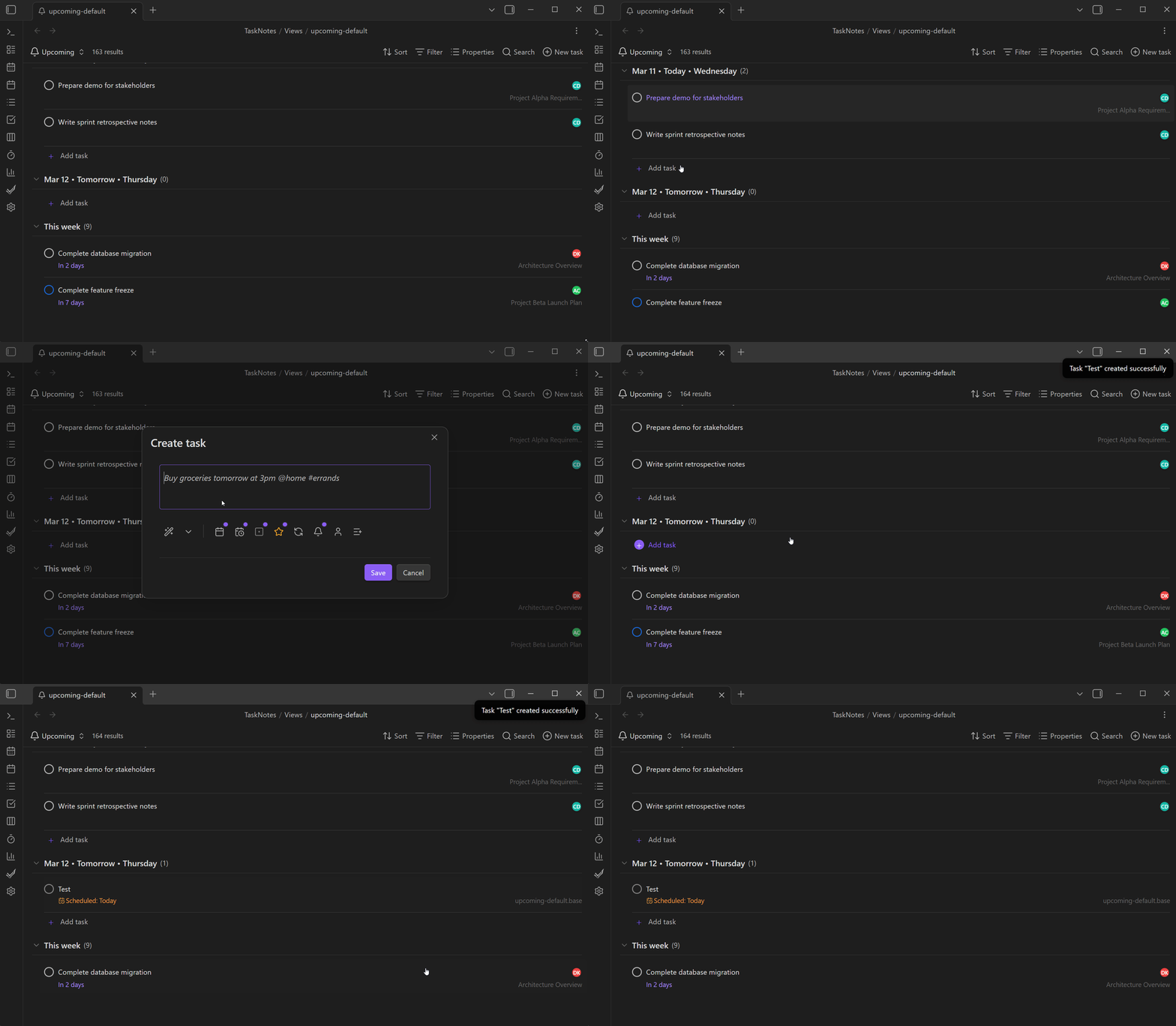
Each time category section has an Add task button. Clicking it opens the task creation modal with the due date pre-filled based on which section you clicked. For example, clicking "Add task" in the Tomorrow section sets the due date to tomorrow.
Context Menus
Right-click any item in the view to open a context menu:
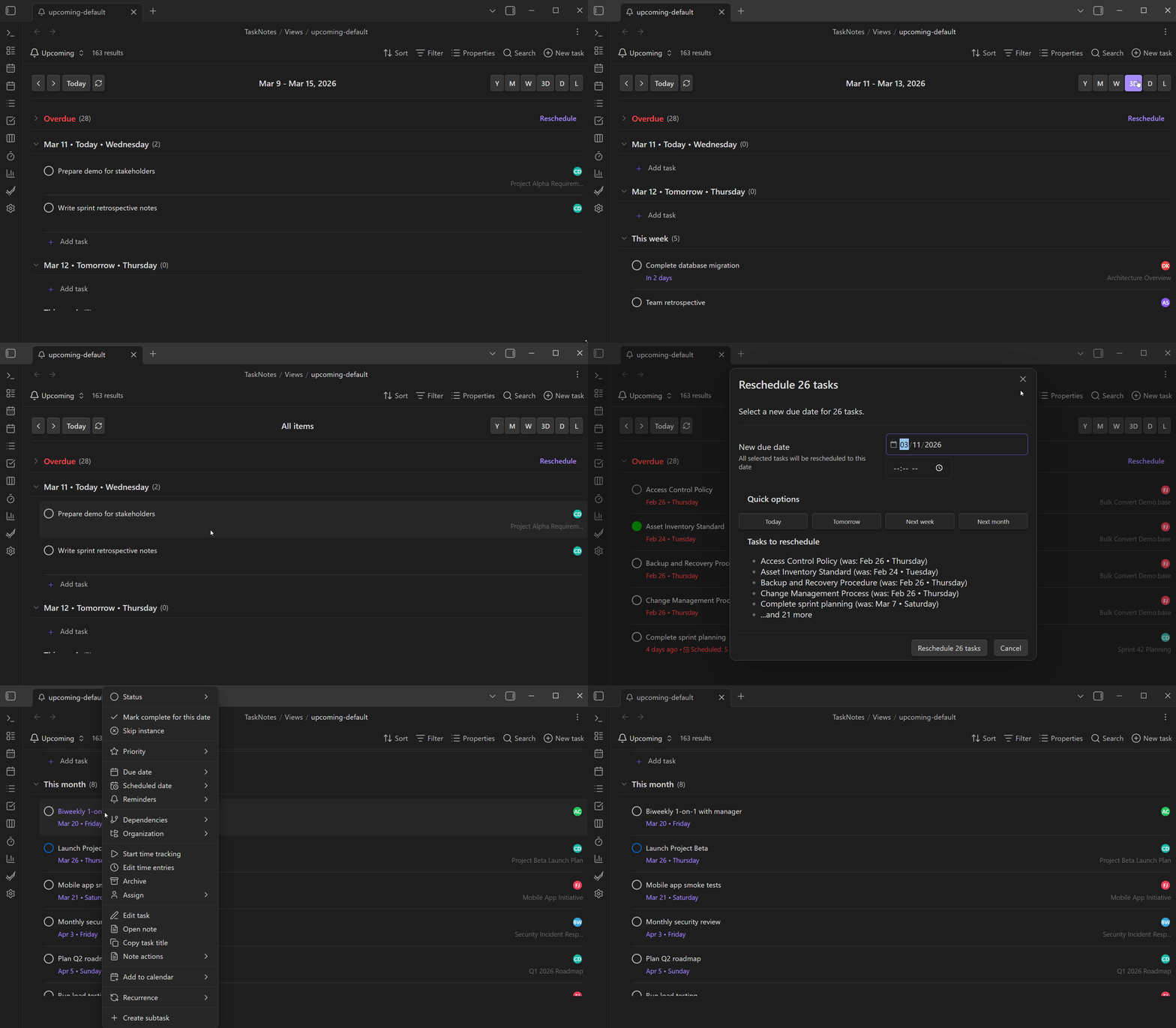
- Tasks get the full task context menu: Edit, Complete, Reschedule, Open note, Archive, Delete, and more
- Non-task items get basic options: Open note and Convert to task
The context menu supports bulk reschedule. Select the reschedule option on a task and pick a new date using the date picker, which offers both specific dates and relative options (Today, Tomorrow, Next week, etc.).
Date Display
Each item shows its due date next to the title. The display format is configurable:
| Format | Example |
|---|---|
| US | Jan 31, 2026 |
| EU | 31 Jan 2026 |
| ISO | 2026-01-31 |
| Relative | "Due in 3 days", "Yesterday" |
| Rich | Jan 31 with day name |
| Custom | Any date-fns pattern (e.g., MMM d, yyyy) |
When relative dates are enabled (the default), dates within the threshold (default: 7 days) show as "Due today", "Due tomorrow", "3 days ago", etc. Dates outside the threshold fall back to the selected format.
If a task has a time component in its due date (e.g., 2026-01-31T14:00), the time is shown alongside the date with a clock icon.
Collapsible Sections
Click any section header to collapse or expand it. The No Due Date section is collapsed by default since those items have no time urgency.
Collapse state is maintained during the current session but resets when you close and reopen the view.
What Appears in the View
The Upcoming View only shows items that meet at least one of these criteria:
- The file is identified as a task (based on your task identification settings)
- The file has a due date set
This prevents random notes from cluttering the view even if the .base file's filters are broad.
Each item displays:
- Title (from frontmatter or filename)
- Due date (formatted per your settings)
- Status indicator
- Project name (extracted from the
projectsfield, shown as a subtle label) - Assignee avatars (colored initials, shown if assignees are set)
Settings
These settings are in Settings > General > Upcoming View:
| Setting | Default | Description |
|---|---|---|
| Date format | US | How dates are displayed (US, EU, ISO, Relative, Rich, Custom) |
| Custom date format | MMM d, yyyy |
date-fns pattern used when format is set to Custom |
| Relative dates | On | Show "Due today", "Due in 3 days" etc. for nearby dates |
| Relative date threshold | 7 | Number of days within which relative dates are shown |
You can also override the date format and relative dates setting per view by adding dateFormat and useRelativeDates to the view configuration in the .base file:
views:
  - type: tasknotesUpcoming
    name: Upcoming
    dateFormat: iso
    useRelativeDates: false
Related
- Task Management for task properties that drive the view
- Reminders for per-task date reminders
- View Notifications for the notification system (experimental)