Workflows
TaskNotes sits at the intersection of two disciplines: knowledge management and task management. Your vault already holds notes, documents, and ideas. TaskNotes adds structured action on top — status, scheduling, assignments, dependencies — without moving anything out of Markdown.
All productive work with information follows a cycle: sense the state of things, decide what to do, act on those decisions, and integrate the results back. Different kinds of work enter that cycle at different points. The four modes below describe those entry points. They are lenses, not silos — real work blends them, and TaskNotes supports that blending because the same Bases view engine serves all four.
Four Modes of Knowledge Work
| Mode | What drives the work | Primary views | Key features |
|---|---|---|---|
| Records & Registers | State of knowledge artifacts | Bases tables, Document Library views | Bulk Convert / Generate, recurring tasks, property mapping |
| Capture & Execute | Incoming items from any source | Upcoming, Agenda, Task List | NLP capture, inline conversion, quick add |
| Orchestration | Relationships between tasks and people | Kanban, Calendar, project views | Projects, dependencies, team assignment |
| Rhythm & Habits | Recurring time cycles | Calendar, Upcoming, Pomodoro | Recurring tasks, completion tracking, habits |
Records & Registers
Maintaining a body of knowledge that drives its own task list.
In records management, a register is a structured inventory of items that require ongoing attention: a document collection, asset inventory, content library, or any corpus that needs periodic review. Tasks are derived from the state of those items: "this document is due for review," "this asset hasn't been audited," "this policy expires next month."
TaskNotes supports this pattern directly. A Bases view can act as a register, a structured table that filters documents by metadata and surfaces the ones that need action. Bulk Convert turns existing notes into tracked tasks in place, while Bulk Generate creates new task files from document metadata. Recurring tasks enforce review cycles. Property mapping lets each register use domain-appropriate field names (review_date instead of due, owner instead of assignee).
The register pattern is common in documentation management, asset tracking, content calendars, compliance, and any context where a corpus of knowledge needs periodic maintenance.
📜 More use cases for Records & Registers
- Content calendar — blog posts, social media drafts, and newsletter issues with
publish_date,author, andstatusfields. A view surfaces drafts approaching their publish date. - Asset inventory — hardware, software licenses, or equipment with
warranty_expiry,assigned_to, andlocation. Bulk Convert turns inventory notes into trackable tasks when maintenance is due. - Policy library — internal policies with
effective_date,review_cycle, andapprover. Recurring tasks enforce review cadence. - Knowledge base maintenance — wiki articles or runbooks with
last_verifiedandowner. A register view highlights stale articles. - Compliance controls — security or regulatory controls with
audit_date,control_owner, andevidence_status. Bases views act as audit dashboards. - Client/vendor directory — contact records with
contract_renewal,account_manager, andtier. Views surface upcoming renewals.
Example: Document Review Library
A team maintains a folder of documents that need periodic review (e.g., Documents/Onboarding Guide.md, Documents/API Reference.md). Each document has frontmatter properties like review_date, review_cycle, and owner. A Bases view filters to documents where the review date has passed, surfaces them as a register, and the team uses Bulk Convert or Bulk Generate to create review tasks linked back to each document.
# Example document frontmatter
title: "Onboarding Guide"
review_date: 2025-12-15
review_cycle: quarterly
owner: "[[Alice Chen]]"
status: active
department: engineering
TaskNotes Features Used
- Bases views as structured registers with filters, sorting, and grouping
- Bulk Generate to create task files from document metadata
- Property mapping for domain-specific field names
- Recurring tasks for cyclical review requirements
- Custom Properties for domain-specific metadata (
review_cycle,department)
Capture & Execute
Fast capture from any source, then consolidation into focused workspaces.
Personal knowledge management (PKM) and GTD share a core insight: capture must be frictionless. Action items emerge continuously — from meetings, reading, conversations, sudden ideas — and if the capture step is slow, items get lost. The work happens later, in a dedicated review session where you triage, prioritize, and schedule.
TaskNotes supports this with multiple capture paths. The command palette opens a task creation modal from anywhere. Natural language parsing extracts dates, priorities, and contexts from plain text ("Buy groceries tomorrow at 3pm high priority"). Inline task conversion turns any checkbox, bullet point, or text line into a tracked task file without leaving the current note. All captured tasks route to TaskNotes/Tasks/ (or your configured folder), keeping your knowledge notes clean.
The execution side uses views as workbenches. The Upcoming View groups tasks by when they are due — overdue, today, this week, later. The Agenda View focuses on the next few hours. The Task List is the inbox for triage: filter, sort, assign projects, set priorities.
Example: Daily Task Management
You start the day in Upcoming View to see what is overdue and what is due today. You drag a few tasks into the Calendar to timebox your afternoon. During a meeting, you jot checkboxes in your meeting note, then use inline conversion to turn them into tracked tasks. At end of day, you check the Agenda to see what is left.
TaskNotes Features Used
- Task creation modal with NLP parsing
- Inline task conversion for checkboxes and text lines
- Upcoming View for daily prioritization
- Agenda View for short-horizon execution
- Calendar views for schedule placement
- Pomodoro View for focused intervals
📜 More use cases for Capture & Execute
- Meeting action items — jot checkboxes during a meeting, then batch-convert them into tracked tasks with inline conversion.
- Reading notes — highlight ideas or follow-ups while reading, convert them into tasks linked to the source note.
- Email triage — capture action items from email into quick tasks via the command palette, then schedule them in Calendar view.
- Brainstorming sessions — dump ideas as bullets, later promote the actionable ones to tasks.
- Student coursework — capture assignments and deadlines from syllabi, triage in Upcoming View by due date.
- Freelance client requests — quick-add tasks from client messages, tag by client, schedule in Calendar.
Orchestration
Coordinating structured efforts across tasks, people, and timelines.
Project management theory and work breakdown structures describe work that has inherent structure — projects contain subtasks, tasks block other tasks, people own deliverables, milestones gate progress. In this mode, the relationships between tasks matter as much as the tasks themselves.
TaskNotes models these relationships directly. Projects are wikilinks to notes, so project context lives alongside task execution. Dependencies use blockedBy/blocking with RFC 9253 semantics. In a shared vault, tasks are attributed to people and groups, and notifications filter to show only your assignments.
Kanban View organizes cards by status for workflow visualization. Calendar views show timeline and scheduling. Project-filtered Task Lists let you isolate one initiative. Combine these views for full project visibility.
Example: Cross-Team Project
A product launch involves design, engineering, and marketing. Each team's tasks are assigned to team members and linked to a [[Product Launch Q2]] project note. A Kanban board filtered to this project shows status flow. A Calendar view shows the timeline. The project lead uses notification-driven triage to catch blocked or overdue items.
title: "Finalize launch assets"
projects: ["[[Product Launch Q2]]"]
assignee: "[[Jamie Torres]]"
blockedBy:
  - uid: "[[Design brand guidelines]]"
    reltype: FINISHTOSTART
status: in-progress
priority: high
due: 2025-03-15
TaskNotes Features Used
- Projects as wikilinks with backlink navigation
- Dependencies for prerequisite tracking
- Team & Attribution for multi-person coordination
- Kanban View for status flow
- Calendar views for timeline management
- View Notifications (experimental) for triage alerts
📜 More use cases for Orchestration
- Product launch — design, engineering, and marketing tasks linked to a launch project note, with dependencies gating sequential deliverables.
- Onboarding program — new hire tasks assigned to mentors and managers, with a Kanban board tracking completion across departments.
- Event planning — venue, catering, speakers, and logistics tasks with dependencies and deadlines on a Calendar view.
- Research project — literature review, experiments, and writing tasks with blocking dependencies and co-author assignments.
- Software release — feature work, QA, docs, and deployment tasks with milestones, assignees, and a Kanban for status flow.
- Home renovation — contractor tasks, permit tracking, and material orders with dependencies and timeline in Calendar view.
Rhythm & Habits
Recurring patterns of attention that structure time and build consistency.
Some work is neither project-shaped nor register-shaped — it is cyclical. Daily reviews, weekly planning, habit tracking, periodic check-ins. The pattern itself is the product. What matters is consistency over time and visibility into streaks, gaps, and trends.
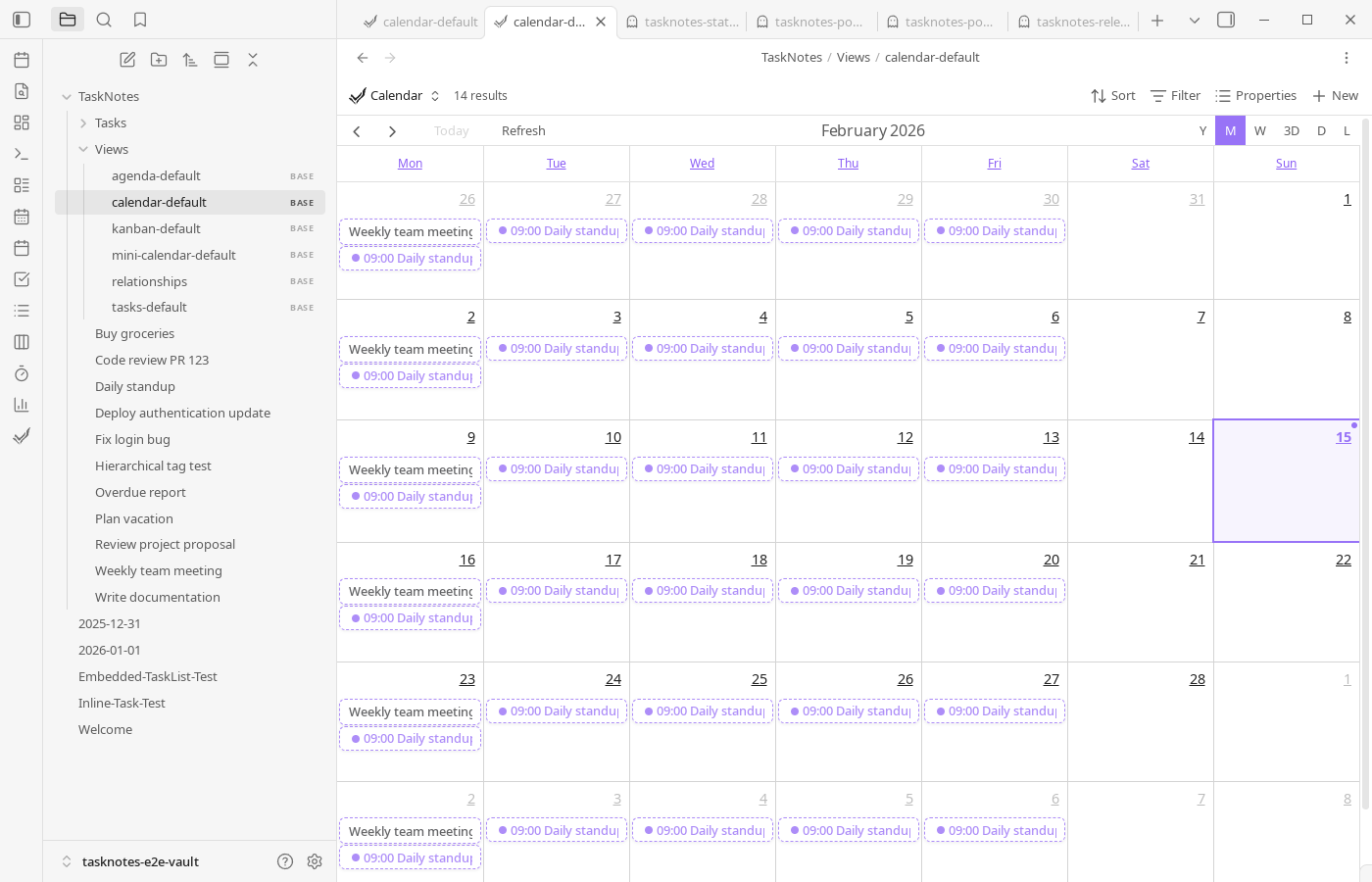
TaskNotes models this with recurring tasks using RFC 5545 RRule syntax. A recurring task stays open while recording completion per occurrence in complete_instances. Calendar views show completion patterns visually. The Upcoming View structures your day around what recurs. Pomodoro View supports focused intervals with break handling and session tracking.
Example: Habit Tracking and Weekly Reviews
You create "Morning Exercise" as a daily recurring task and "Weekly Review" as a weekly one. Each day, you mark completion in the task's recurrence calendar. Over time, the Calendar view shows your streak — green dots for completed days, gaps for missed ones. The weekly review task prompts you to clean up completed work, check recurring patterns, and rebalance priorities.
title: Morning Exercise
recurrence: "FREQ=DAILY"
scheduled: "07:00"
complete_instances:
  - "2025-01-01"
  - "2025-01-02"
  - "2025-01-04"
TaskNotes Features Used
- Recurring tasks with RRule patterns
complete_instancesfor streak and completion tracking- Calendar views for pattern visualization
- Upcoming View for daily cadence
- Pomodoro View for focused intervals
📜 More use cases for Rhythm & Habits
- Morning routine — daily recurring tasks for exercise, journaling, and planning, with streak tracking in Calendar view.
- Weekly review — a weekly task that prompts you to clean up completed work, check recurring patterns, and rebalance priorities.
- Monthly budget review — recurring monthly task to review finances, with completion history showing consistency.
- Medication tracking — daily reminders with completion logging to verify adherence over time.
- Content publishing cadence — weekly blog post or newsletter task with Pomodoro sessions for focused writing blocks.
- Team standups — daily or weekly recurring tasks for standup notes, with completion history showing attendance patterns.
- Quarterly goal check-ins — recurring quarterly tasks to review OKRs or personal goals.
Combining Modes
Real work blends modes. A compliance program uses Records & Registers to maintain the control library, Orchestration to coordinate audit tasks across a team, and Rhythm for quarterly review cycles. A freelancer uses Capture & Execute for daily client requests, Orchestration for multi-deliverable projects, and Rhythm for weekly invoicing.
The reason TaskNotes can serve all of these is architectural: every Bases view is a workspace that can filter, create tasks, run bulk operations, trigger notifications, and map properties. The same engine handles compliance registers, personal inboxes, project boards, and habit trackers — because the underlying operations (filter → act → track) are universal.
When you find yourself combining modes, create separate views for each concern. A project might have a Kanban for orchestration, a register for document tracking, and a recurring task for weekly status updates. Each view queries the same underlying task notes but presents them through a different lens.
Practical Walkthroughs
The sections above describe why each mode works. The walkthroughs below summarize how. For the full guided experience with GIFs and video tutorials, see Workflow Examples.
Each walkthrough is tagged with the mode(s) it demonstrates.
Habit Tracking with Recurring Tasks
Mode: Rhythm
Habit tracking in TaskNotes is built on recurring task notes. You can create a recurring task from natural language (for example, "Exercise daily" or "Gym every Monday and Wednesday") or configure recurrence explicitly in the task modal. The modal recurrence controls support frequency, interval, weekday selection, and end conditions.
Once a task has a recurrence rule, its edit modal shows a recurrence calendar. That calendar is where you mark completion per occurrence. Completion history is stored in complete_instances, so a recurring task can remain open while still recording daily/weekly completion behavior.
title: Morning Exercise
recurrence: "FREQ=DAILY"
scheduled: "07:00"
complete_instances:
  - "2025-01-01"
  - "2025-01-02"
  - "2025-01-04"
Use Calendar and Agenda views to review upcoming occurrences, and use recurring-task filters when you want a habit-only planning view.
Project-Centered Planning
Mode: Orchestration
Projects in TaskNotes can be plain text values or wikilinks to project notes. Wikilinks are usually the better long-term option because they connect task execution to project context, backlinks, and graph navigation.
title: "Research competitors"
projects: ["[[Market Research]]", "[[Q1 Strategy]]"]
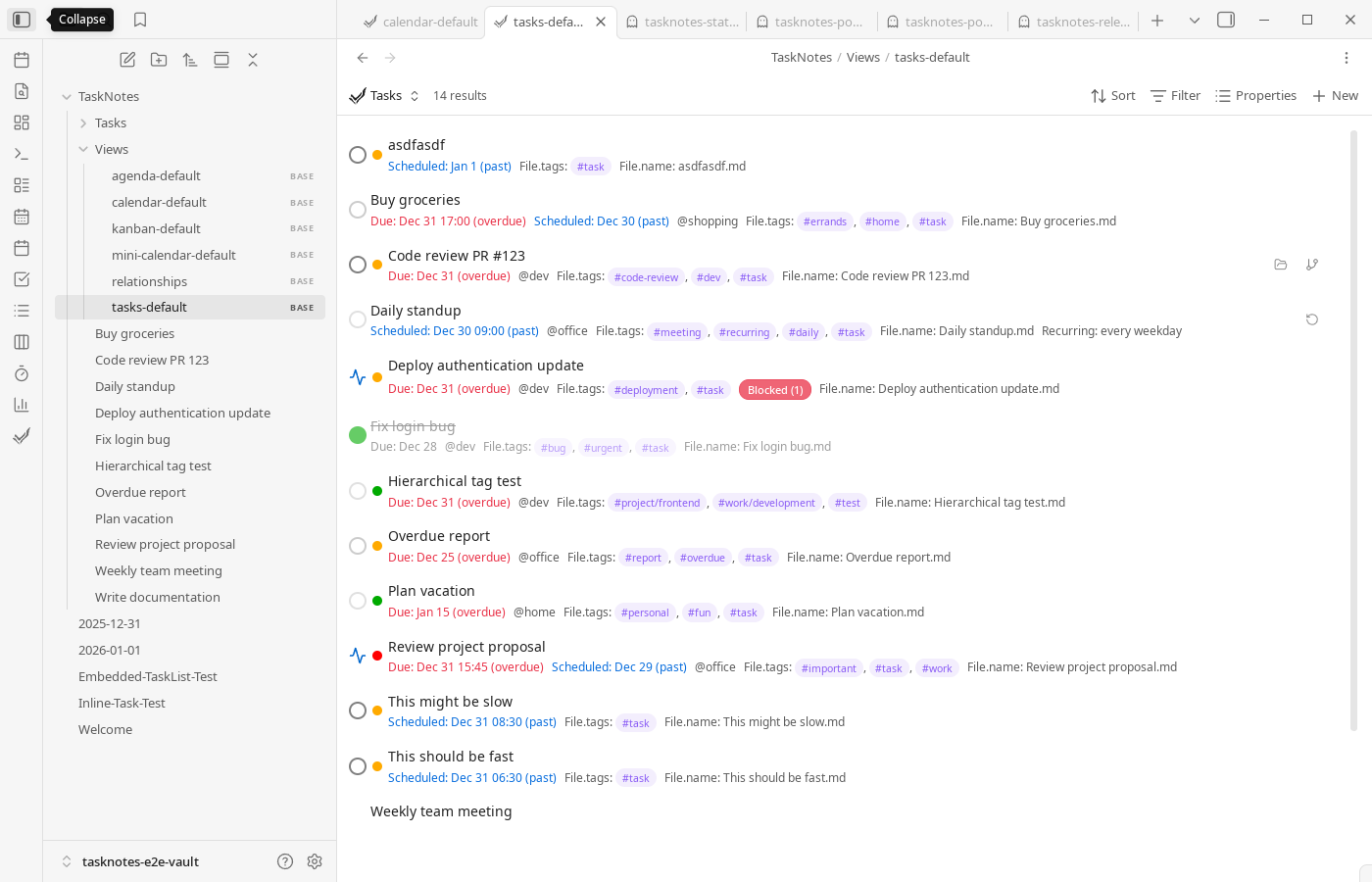
During task creation, use the project picker to search and assign one or more projects. In day-to-day planning, open Task List or Kanban, then filter on note.projects contains [[Project Name]] to isolate one initiative. Save that filter as a Bases saved view if you revisit it regularly.
When work spans initiatives, assign multiple projects and combine with contexts or tags for secondary organization.
title: "Prepare presentation slides"
projects: ["[[Q4 Planning]]"]
contexts: ["@computer", "@office"]
tags: ["#review"]
Execution Workflow (Daily)
Mode: Capture & Execute
A typical daily flow is to start in Task List for prioritization, move to Calendar for schedule placement, and finish in Agenda for near-term sequencing. This keeps backlog management, time allocation, and short-horizon execution in one system.
If you use timeboxing, drag-select on calendar timeline views and create timeblocks directly from the context menu. If you use Pomodoro, run sessions against active tasks so completion and timing data stay attached to task notes.
Maintenance Workflow (Weekly)
Modes: Rhythm + Capture & Execute
A weekly review usually includes three steps: clean up completed/archived tasks, verify recurring-task completion patterns, and rebalance project filters/views. If calendar integrations are enabled, this is also a good point to refresh subscriptions and confirm sync health.
For teams or complex personal systems, keep project notes as source-of-truth documents and use TaskNotes views as execution dashboards derived from those notes.
Bulk Tasking from Meeting Notes
Modes: Capture & Execute + Records & Registers
After a meeting, you often have a note full of action items. Rather than creating tasks one by one, open the meeting note in a Bases view (or right-click it in the file explorer) and use Bulk tasking. Generate mode creates a task file for each item and links it back to the meeting note via the projects field. Set a due date and assignee in the action bar and they apply to every generated task at once.
If the meeting note itself should become a task, use Convert mode instead. It adds task metadata to the note in place without creating a separate file.
Team Workflow in a Shared Vault
Mode: Orchestration
In a shared vault, each person registers their device to a person note once. After that, TaskNotes auto-attributes every task you create. The person/group picker makes assignment fast -- start typing a name or group, select it, and move on.
Enable "Only notify for my tasks" so each person only sees notifications for tasks assigned to them or their groups. Notifications filter silently -- you do not see a dismissal for other people's tasks, they simply do not appear.
Notification-Driven Triage
Modes: Orchestration + Records & Registers
Create a Bases view filtered to tasks that need attention -- overdue items, tasks without assignees, or items flagged for review. Add notify: true to the view's YAML. TaskNotes watches the query in the background and surfaces a toast when items match. Click the toast to open the Upcoming View where everything is organized by urgency.
Combine with snooze to avoid notification fatigue. Snooze the toast for 4 hours during deep work, and it reappears when you are ready to triage again.